Maven Repositories
This section documents configuration and settings specific to Maven based repositories.
Maven Client Configuration
Overview
Apache Maven repositories are where software development teams share their code artifacts (libraries, packages, etc.).
Maven Central is the public repository where open source and other publicly available artifacts can be downloaded.
However, many businesses, private organizations and projects require private maven repositories so that they can leverage the power of Maven while maintaining the privacy of their artifacts.
CloudRepo is a private, cloud based, artifact repository which provides both public and private Maven repositories to its users.
This page will help you get started by helping you setup a CloudRepo Maven repository.
Pre-Requisites
Before you can use CloudRepo with Maven you’ll need to ensure that you have created a Maven Repository as well as a Repository User in the CloudRepo Admin Portal.
If you haven’t done this yet, please see the following instructions for doing so:
Note
For security purposes (mostly because passwords tend to be stored in plaintext), we do not allow your admin user to access artifacts via the repositories. Please create a user in the CloudRepo Administrator Portal.
Maven Client Settings
Note
In the Connection Settings of your repository we provide specific configuration information for your repository.
In order for your Maven Client to connect to CloudRepo, you’ll need to configured the following files:
$HOME/.m2/settings.xml
Project POM Files (pom.xml)
Note
$HOME/.m2 is the default directory for the maven client to use. Please keep this in mind if you’ve changed the location.
settings.xml
In order for your Maven Client to connect to CloudRepo, you’ll need to add a <server> entry to the settings.xml the user’s authentication information to your Maven settings.xml file, usually located in the $HOME/.m2 directory.
An example settings.xml is below:
<settings>
  <servers>
    <server>
      <!-- id is a unique identifier for a single repository.-->
      <id>io.cloudrepo</id>
      <!-- Email Address of the Repository User -->
      <username>repository-user-email-address</username>
      <!-- Password of the Repository User -->
      <password>repository-user-password</password>
    </server>
  </servers>
</settings>
See also
Security Tip: You should consider encrypting the repository users’ password following these instructions from the official Maven Documentation.
Project POM Files (pom.xml)
All Maven projects use a Project Object Model (POM) file to specify the location of the repositories to read and write artifacts to/from.
Configuration of the POM file for downloading artifacts is distinct from publishing artifacts. Examples for both are specified below.
Note
Specify your repositories in the parent POM file (if you have one) so that you only have to add the repository information in a single place.
Retrieving Artifacts from CloudRepo
Repositories specified in the <repositories> block define the repositories that Maven will use to retrieve artifacts.
<project>
  <!-- ...  -->
  <!-- Other Project Configuration (dependencies, etc.)-->
  <!-- ...  -->
  <repositories>
    <repository>
      <!--
      The username and password are retrieved by looking for the Repository
      Id in the $HOME/.m2/settings.xml file.
      -->
      <!-- id Must Match the Unique Identifier in settings.xml -->
      <id>io.cloudrepo</id>
      <url>https://[your-org-name].mycloudrepo.io/repositories/[your-repository-name]</url>
      <releases/>
    </repository>
  </repositories>
</project>
After the repository has been configured, Maven will retrieve your artifacts stored in CloudRepo as part of its build process.
One way to trigger a maven build is to execute the following command in the same directory as your POM file:
mvn install
Publishing Artifacts to CloudRepo
Repositories listed in the <distributionManagement> section of the POM file define the repositories that Maven will use to publish artifacts.
<project>
  <!-- All your other configuration -->
  <distributionManagement>
    <repository>
      <id>io.cloudrepo</id> <!-- Must Match the Unique Identifier in settings.xml -->
      <name>My First Cloud Repo Repository</name>
      <url>https://[your-org-name].mycloudrepo.io/repositories/[your-repository-name]</url>
    </repository>
  </distributionManagement>
</project>
After your distribution repository has been properly configured, you can publish artifacts to CloudRepo with the following command:
mvn deploy
Artifacts which are successfully deployed to CloudRepo are immediately available for retrieval and can be seen in the CloudRepo Administrator Portal.
Gradle Client Configuration
Example build.gradle file
apply plugin: 'java'
apply plugin: 'maven-publish'

/**
* Create variables here for the example so simple substitution can be used in the example.
*/
def organizationId = 'chenpo'
def repositoryId = 'snapshots'

// Repository URL is a function of the organizationId and the repositoryId.
def repositoryURL = 'https://' + organizationId + '.mycloudrepo.io/repositories/' + repositoryId

// Substitute your credentials here.
def cloudRepoUsername = 'repository-user-email-address'
def cloudRepoPassword = 'repository-user-password'

/*
* This is for retrieving artifacts FROM CloudRepo.   Once this is setup a './gradlew build' will retrieve the defined
* dependencies.
*/
repositories {
    /**
    * Point at Maven Central for artifacts located there.  Optionally, you can create a proxy with CloudRepo and
    * point there if you want to ensure you aren't affected by changes in Central.
    */
    mavenCentral()

    /** This is your CloudRepo Repository connection information - for READing/DOWNLOADing purposes */
    maven {
        name 'CloudRepo Snapshots'
        url repositoryURL
        credentials {
            username cloudRepoUsername
            password cloudRepoPassword
        }
    }
}

/**
* This is for publishing TO CloudRepo - Once this is configured you can deploy with a './gradlew publish' command.
*/
publishing {
    publications {
        maven(MavenPublication) {
            groupId = 'org.chenpo.example'
            artifactId = 'gradle-hello-word'
            version = '1.1-SNAPSHOT'

            from components.java
        }
    }

    repositories {
        maven {
            credentials {
                name 'CloudRepo Deployment Repository'
                username cloudRepoUsername
                password cloudRepoPassword
            }
            url repositoryURL
        }
    }
}

// These are the dependencies your project requires.
dependencies {
    compile group: 'io.cloudrepo.example', name: 'artifact-a', version: '0.0.1-SNAPSHOT'
}
Maven Repository Settings
In addition to the Standard Settings associated with every repository, Maven Repositories have the following additional options.
Maven Snapshot Cleanup
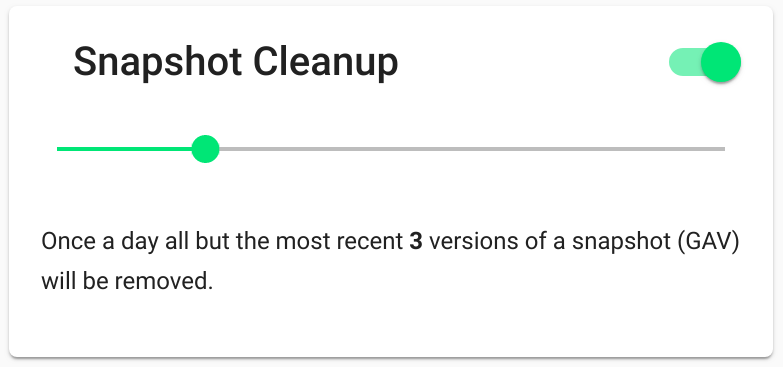
Maven Snapshots are artifacts whose versions end in -SNAPSHOT.
Each time a snapshot version is deployed to a Maven Repository, a new version of the artifact is written.
Contrast this with release versions, which only have one version in a repository.
If you build your code frequently, you can quickly accumulated dozens or more versions of the same snapshot.
In order to automatically clean this up, you can enable Snapshot Cleanup on your maven repositories.
When enabled, once a day we’ll look at all your snapshot artifacts and remove all but the last X versions of an artifact.
Maven Overwrite Protection
Overwrite Protection is the default on Maven repositories: any repository that has not explicitly turned it off is protected, whenever it was created. With it enabled, publishing a release artifact to a coordinate that already holds one is refused with 409 Conflict, and the artifact already in the repository is left as it is.
Publish Refused: status code: 409, reason phrase: Conflict
If a mvn deploy has just failed and the only explanation in the output is
this:
status code: 409, reason phrase: Conflict
then you have republished a release version into a repository that has
Overwrite Protection enabled, which is the default. That fragment really is the
whole of it. CloudRepo sends an explanation in the response body
(Version already exists. Overwrites are disabled for this repository.), but
Maven prints only the status code and the reason phrase and discards the
rest, so you never see it.
Nothing is broken. Your credentials are fine, the repository is fine, and the server did exactly what it was configured to do: it refused to replace a release artifact that already exists, before writing any bytes. This is a policy refusal, not a fault.
Three ways forward, in the order that is usually right:
Publish a new version instead. Almost always the right answer. A release version that has already been consumed by someone else’s build should not change underneath them, which is the reason for the default.
Use a
-SNAPSHOTversion while you are still iterating. SNAPSHOT versions are exempt and may be republished as often as you build. If you are redeploying the same coordinate repeatedly, this is the version scheme you actually want.Turn Overwrite Protection off for that repository, from the Overwrite Protection card in its settings. Do this if the repository is genuinely meant to accept republished releases. What you give up: from that point on CloudRepo will let a publish silently replace an existing release, so a build that resolved that coordinate yesterday can get different bytes today, and the previous copy is only recoverable for 30 days by contacting support.
Two things are exempt, because Maven re-authors both on every publish:
SNAPSHOT versions. Anything published under a version ending in -SNAPSHOT may always be overwritten. This is what lets Snapshot Cleanup above have several versions of the same artifact to clean up.
maven-metadata.xml, along with its own
.md5,.sha1,.sha256,.sha512and.ascsidecars. These index files are rewritten each time you publish a new version.
A checksum or signature sidecar belonging to an artifact, such as my-app-1.0.0.jar.sha1, is not exempt. It is written once with its release and protected along with it.
Overwrite Protection is a per-repository setting. If a Maven repository is meant to accept republished releases, turn it off from the Overwrite Protection card in that repository’s settings.
Maven Proxy Repositories
CloudRepo supports proxy repositories which allow you to proxy requests through CloudRepo to a publicly accessible Maven Repository (like Maven Central, JCenter, etc).
More details can be found in the Proxy Repositories documentation.
Command Line (CURL) Examples
There are times when you want to access your artifacts directly, rather than go through the Maven client. In this case, you can upload and download files via the command line with CURL.
We provide command line examples of how to upload and download files to/from CloudRepo via CURL in our Raw (HTTP) Repositories - Command Line (CURL) Examples.