Repository Management
All Repositories
Section titled “All Repositories”When you first head to the repositories page, you’ll be presented with a list of all the repositories in your organization.
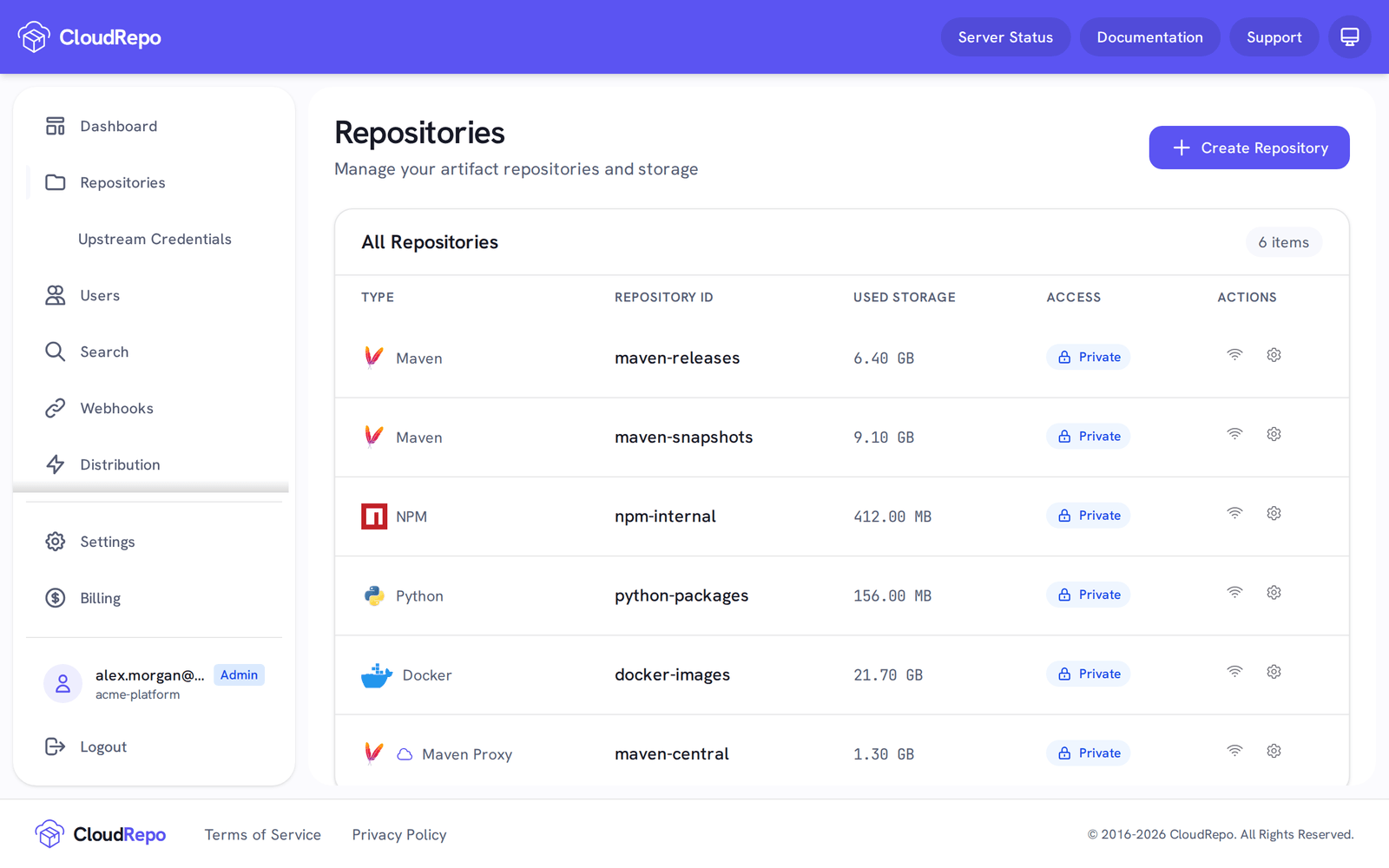
Clicking on an individual repository will bring you to the individual repository overview.
You can also create a repository from this screen by clicking Create Repository.
Creating a Repository
Section titled “Creating a Repository”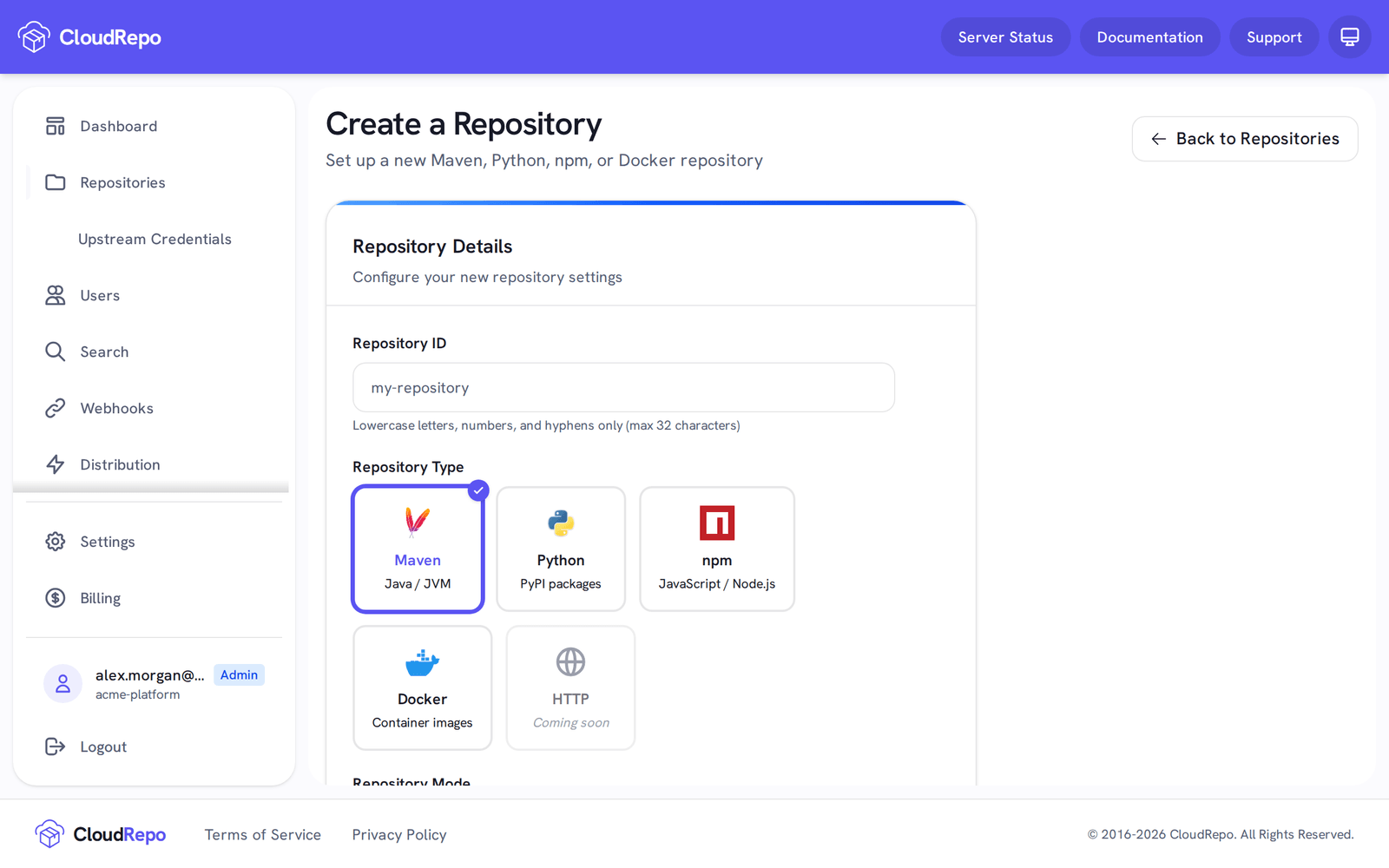
On the Create a Repository screen you provide:
- Repository ID: the name of the repository, such as
releasesorpackages. It becomes part of the repository’s URL. - Repository Type: Maven, Python, npm or Docker.
- Repository Mode: Local (you publish to it), Proxy (it keeps a copy of what it fetches from a public upstream you pick from a list) or, for Maven and Docker only, Group (one address in front of several repositories).
Managing a Repository
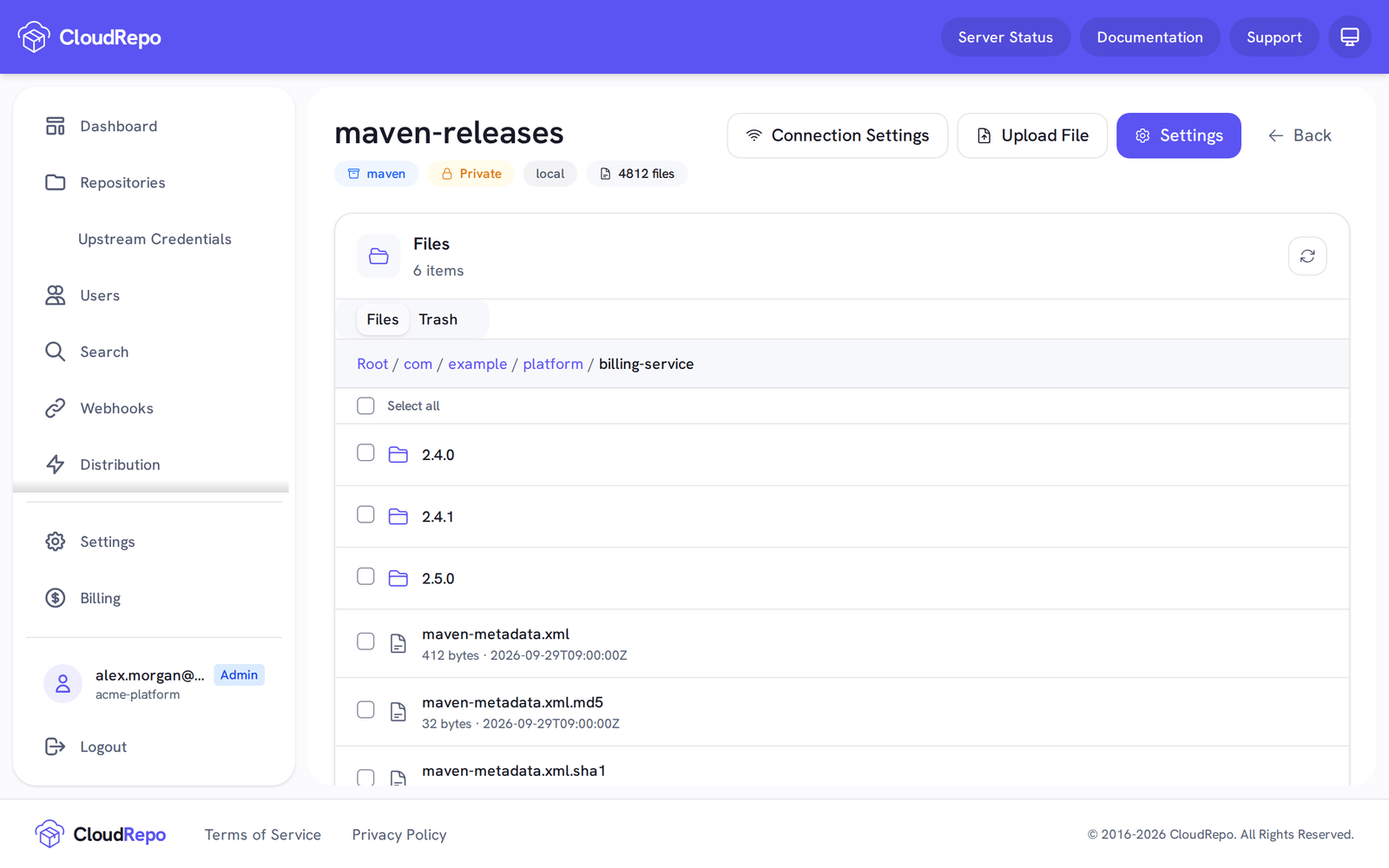
Section titled “Managing a Repository”The repository overview screen allows you to view the contents of your repository in a familiar, file tree browser.
From this view, you can see all files and directories, their update times, and file sizes.
Uploading Files
Section titled “Uploading Files”You can upload a file directly through the Admin Portal: open the repository and click Upload File, then choose the file on your computer.
Downloading Files
Section titled “Downloading Files”To download a file, click the row containing it.
Viewing Folders
Section titled “Viewing Folders”To view the contents of a folder, simply click on the row containing the folder and you’ll be sent to a new view containing its contents.
Navigating Directory Hierarchy
Section titled “Navigating Directory Hierarchy”To move back up the current path, use the breadcrumbs above the file listing.
Deleting Files and Folders
Section titled “Deleting Files and Folders”In a Maven or Python repository that holds your own files, a file or folder you delete is listed in the repository’s Trash. Someone with the Manage Repositories permission can restore it from there. Deleting a file needs only write access, so a member who can delete a file may be unable to restore it.
Deleting a Single File or Folder
Section titled “Deleting a Single File or Folder”Hover over the file’s or folder’s row in the file browser, click its delete icon, and confirm. The item leaves the current view.
Deleting a folder deletes every file under it. For a large folder, CloudRepo runs the deletion as a background job and shows its progress in the file browser.
Bulk Delete
Section titled “Bulk Delete”To delete multiple items in one action:
-
Check the selection box next to each file or folder you want to delete.
Expected: a toolbar with Delete Selected appears.
-
Click Delete Selected.
Expected: a confirmation dialog counts the files and directories you selected.
-
Type the repository name to confirm, then confirm your identity with your password when CloudRepo asks.
Expected: the bulk delete runs as a background job, with its progress shown.
In the portal, deleting a folder, deleting several items at once and purging from the Trash ask you to confirm your identity. A repository token cannot run any of them.
Large Deletions Run Asynchronously
Section titled “Large Deletions Run Asynchronously”When CloudRepo deletes more than a handful of files (deep folder trees or bulk selections), the operation runs as a background job:
- You get immediate feedback in the UI
- A progress indicator shows how many files have been processed
- The file browser is usable during the job, so you can browse other folders or switch away and come back
Trash and Recovery
Section titled “Trash and Recovery”A Maven or Python repository has a Trash tab beside the Files tab. A file deleted from a repository that holds your own files, from the portal or the API, is listed there. The tab carries its own notice: Deleted items are automatically removed after 30 days.
Finding the Trash
Section titled “Finding the Trash”Open a Maven or Python repository from the repositories page and click the Trash tab. It shows every file that can still be restored, with its name, its size, and how long ago it was deleted. Only someone with the Manage Repositories permission can see what the Trash holds.
Restoring a File
Section titled “Restoring a File”Click the Restore icon next to any item in the Trash. CloudRepo returns the file to its original location. Restoring needs the Manage Repositories permission, and asks for no confirmation of your identity. A proxy repository refuses a restore.
Permanently Deleting (Purging) a File
Section titled “Permanently Deleting (Purging) a File”Organization owners can permanently purge a file from the Trash. A purged file is no longer in the Trash, and the Trash cannot restore it.
-
Click the Delete permanently icon next to the item.
Expected: a confirmation that names the file.
-
Confirm, and confirm your identity with your password when CloudRepo asks.
Expected: the file leaves the Trash.
Only the organization owner sees the purge icon.
Frequently Asked Questions
Section titled “Frequently Asked Questions”Can I restore files in bulk?
No. Files are restored one at a time from the Trash.
What happens to webhooks when I delete or restore a file?
A webhook that fires on deletes also fires when a file is restored or purged, whether the action came from the portal or the API.
View Connection Settings
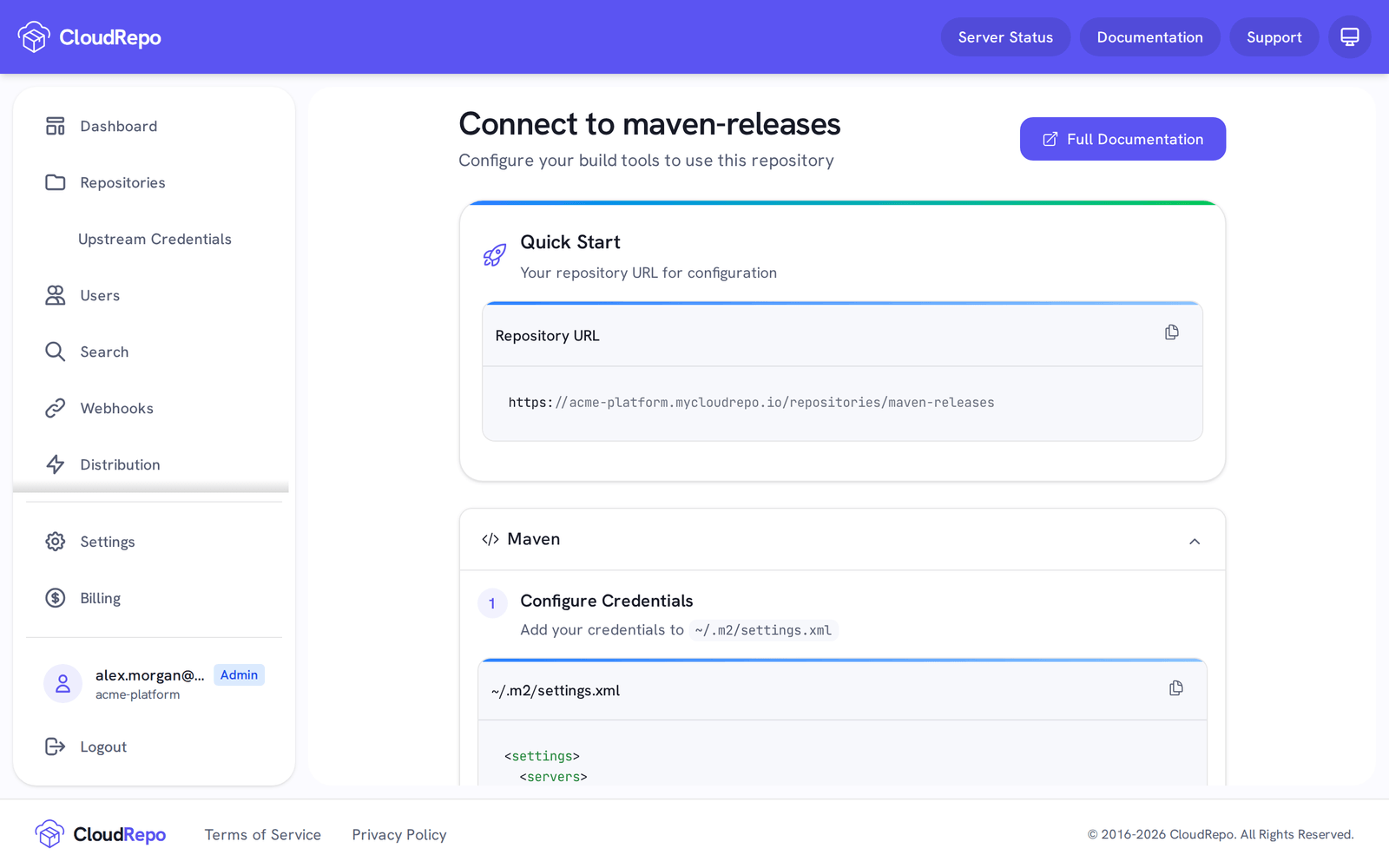
Section titled “View Connection Settings”To see how to connect your clients to a repository, open the repository and click Connection Settings. The instructions are filled in for that repository; you still substitute your own credentials where indicated.
Repository Settings
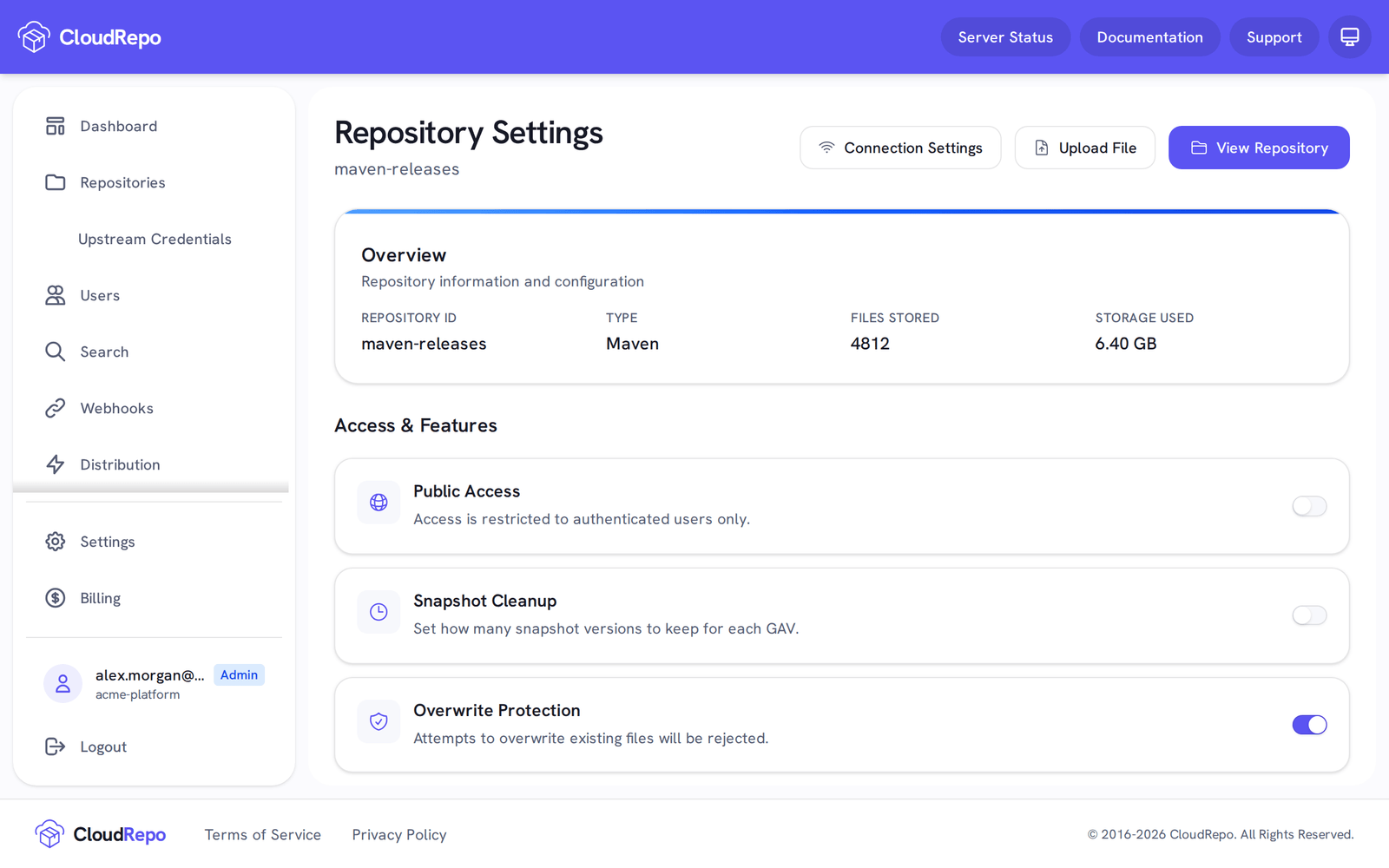
Section titled “Repository Settings”Each repository has its own settings. Open the repository and click Settings.
Enabling Public Repository Access
Section titled “Enabling Public Repository Access”By default, every repository is private and requires authentication.
Turn on the Public Access card to let anyone read a Maven, Python or npm repository without credentials. Turn it off to make the repository private again.
Overwrite Protection
Section titled “Overwrite Protection”Overwrite Protection is the default on every Maven, Python and npm repository. Any repository
that has not explicitly turned it off is protected, whenever it was created. When it is enabled, a
publish that would replace a file already stored at the same path is refused with 409 Conflict
and the file already in the repository is left untouched.
Overwrite Protection is a per-repository setting, not a platform-wide guarantee. Turn it off from the Overwrite Protection card in the repository’s settings and that repository will accept overwrites again.
What Overwrite Protection Covers
Section titled “What Overwrite Protection Covers”Overwrite Protection applies to the package-manager publish APIs (mvn deploy, gradle publish,
twine upload, npm publish) and to file uploads through the Admin Portal.
It refuses a write that would replace a file already present at the same path. It is not a retention policy: a file you delete through the portal or the API is deleted whether or not Overwrite Protection is enabled.
What a Refused Write Looks Like
Section titled “What a Refused Write Looks Like”CloudRepo answers a refused write with 409 Conflict and an explanation in the response body. How
much of that reaches you depends on which client you are using.
npm shows the message. npm publish prints the response body after the status, so a refused publish
says in as many words that the version already exists and that overwrites are disabled for the
repository.
twine shows the message only on request. twine upload prints the status line, HTTPError: 409 Conflict, and prints the response body only when you run it with --verbose.
Maven does not. mvn deploy reports only the HTTP status and its reason phrase, so the entire
explanation you get is:
status code: 409, reason phrase: ConflictThe body CloudRepo sends is not displayed. This is the Maven client’s behaviour, not a fault in the server or a sign of a broken repository: the publish was refused on purpose, by a policy setting. If you are troubleshooting a Maven or Gradle publish, see Maven Overwrite Protection for what to do about it.
Maven: SNAPSHOT and Metadata Are Exempt
Section titled “Maven: SNAPSHOT and Metadata Are Exempt”On Maven repositories, two things that Maven itself re-authors on every publish are exempt, so a protected repository still behaves the way Maven and Gradle expect:
- SNAPSHOT versions. Any file published under a version directory ending in
-SNAPSHOTmay always be overwritten. This covers both the plain form (app-1.0.0-SNAPSHOT.jar) and the unique/timestamped form (app-1.0.0-20260101.120000-1.jar). - The metadata index.
maven-metadata.xml, along with its own checksum and signature sidecars (.md5,.sha1,.sha256,.sha512,.asc). These index files are rewritten every time a new version is published.
A checksum or signature sidecar that belongs to an artifact, such as app-1.0.0.jar.sha1, is
not exempt. It is written once alongside its release and is protected along with it.
The same two exemptions apply to a file you upload through the Admin Portal.
Python and npm repositories have no mutable-version convention, so no version is exempt there.
Docker Repositories
Section titled “Docker Repositories”Docker repositories do not offer Overwrite Protection, and the card does not appear in their settings.
Delete a Repository
Section titled “Delete a Repository”A repository must be empty before you can delete it. To delete one:
-
Open the repository’s Settings, then click Delete Repository.
Expected: a confirmation dialog.
-
Type the repository’s name to confirm, and confirm.
Expected: the repository is gone from the list. If it still holds files, nothing is deleted and CloudRepo tells you so.
Other Options
Section titled “Other Options”Other cards in the repository settings are specific to the repository’s format: