Webhooks
Overview
Section titled “Overview”Webhooks allow you to send notifications to servers outside of CloudRepo whenever one of the following events occurs in a Maven, Python or npm repository:
- File Deletion
- File Download
- File Upload
Types of Webhooks
Section titled “Types of Webhooks”CloudRepo currently supports the following type of Webhooks:
Every webhook target must be an https:// URL that resolves to a public host.
JSON Webhooks
Section titled “JSON Webhooks”CloudRepo can be configured to POST a JSON payload to an HTTPS endpoint whenever a file event happens in a Maven, Python or npm repository.
Jump to Creating a Webhook to get started.
Slack Integration
Section titled “Slack Integration”To send events to a Slack channel, create an incoming webhook in your Slack workspace first, by following Slack’s guide, Sending messages using incoming webhooks. Slack gives you a webhook URL. Then create a CloudRepo webhook of type Slack and paste that URL as the Webhook Target. Treat the URL as a secret: whoever has it can post to your channel.
Creating a CloudRepo Webhook
Section titled “Creating a CloudRepo Webhook”First, you’ll need to login to the CloudRepo Administrator Portal.
From the side navigation panel, click Webhooks.
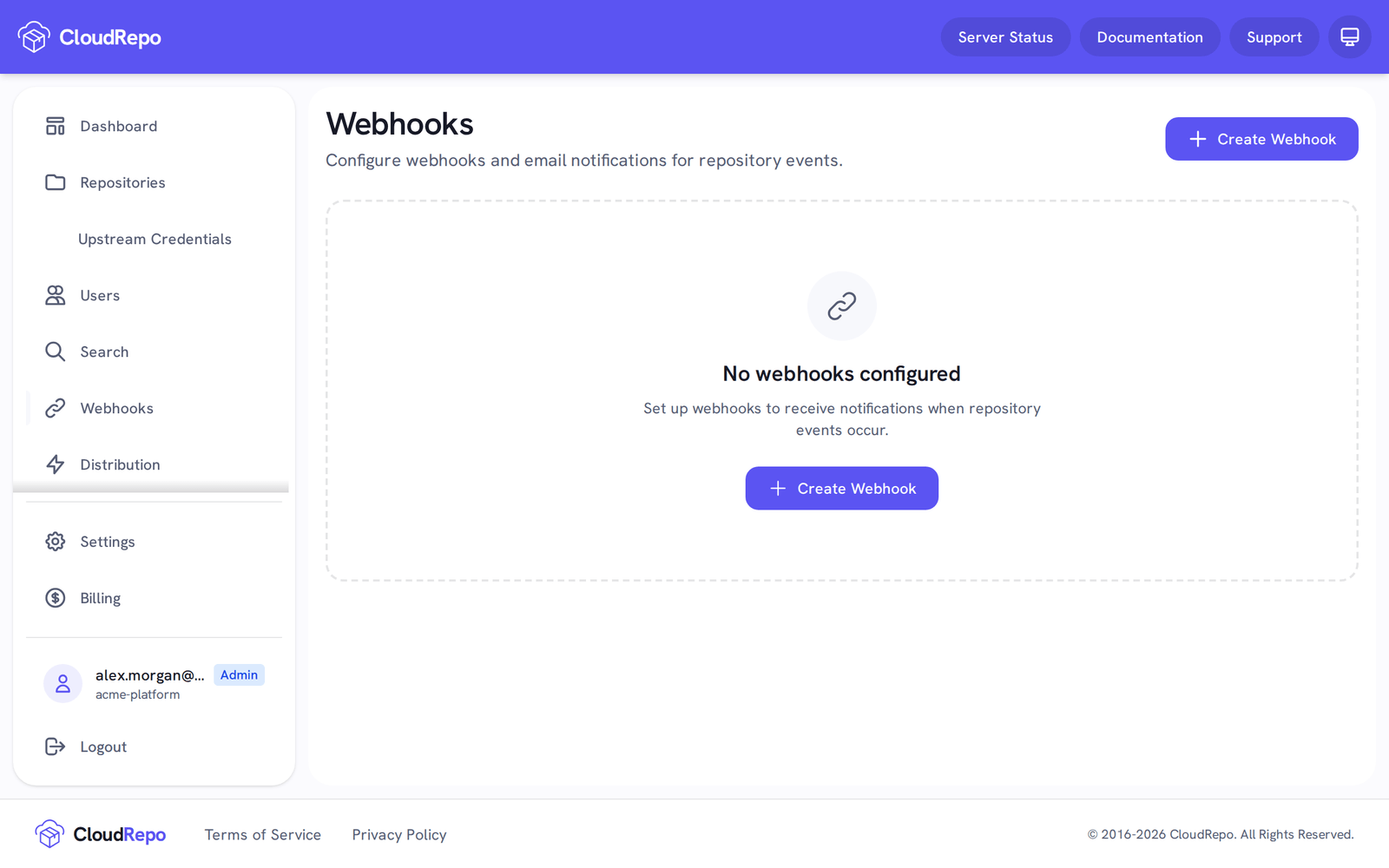
You’ll be presented with the list of webhooks. If this is your first, the page reads No webhooks configured.
Click Create Webhook.
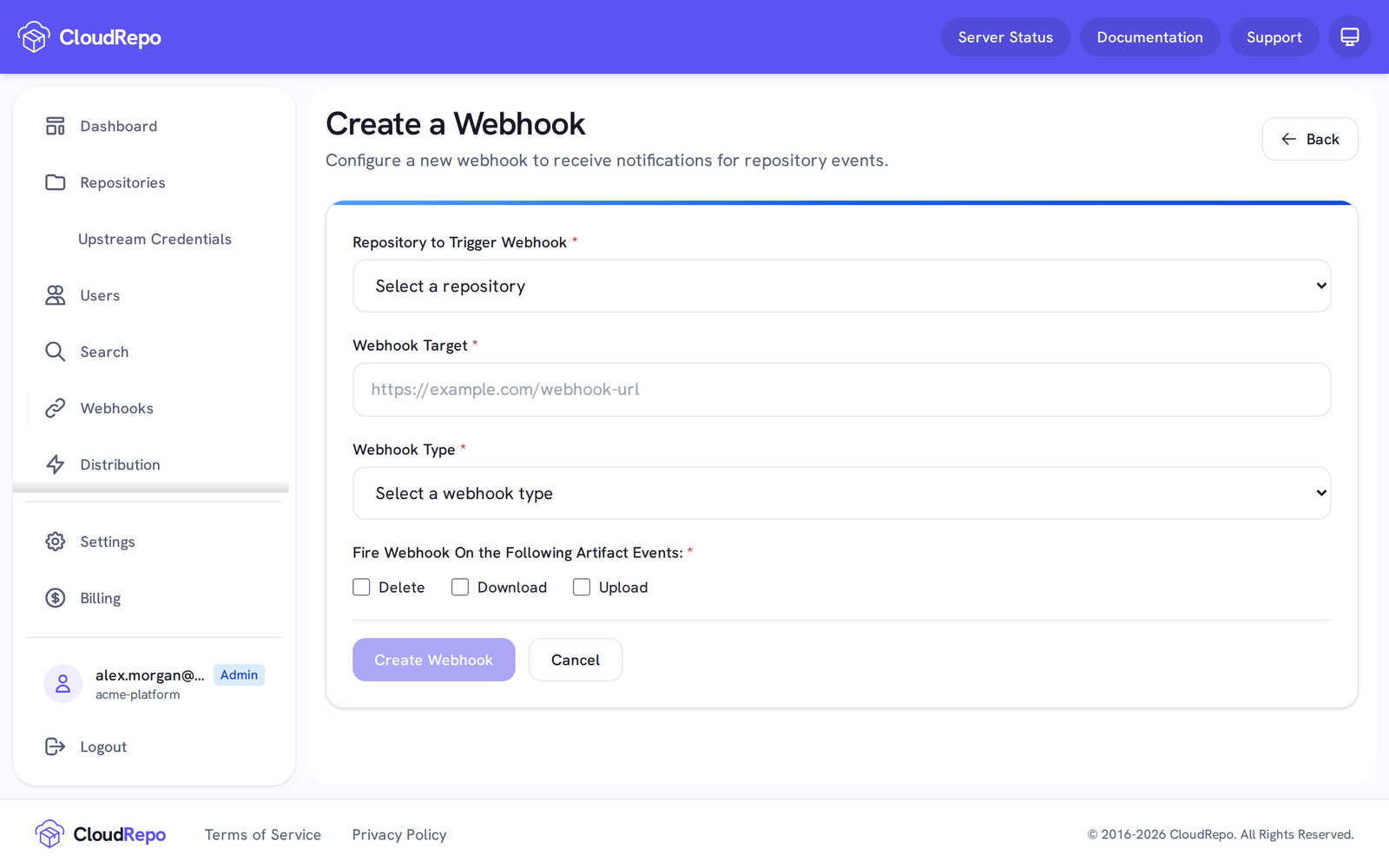
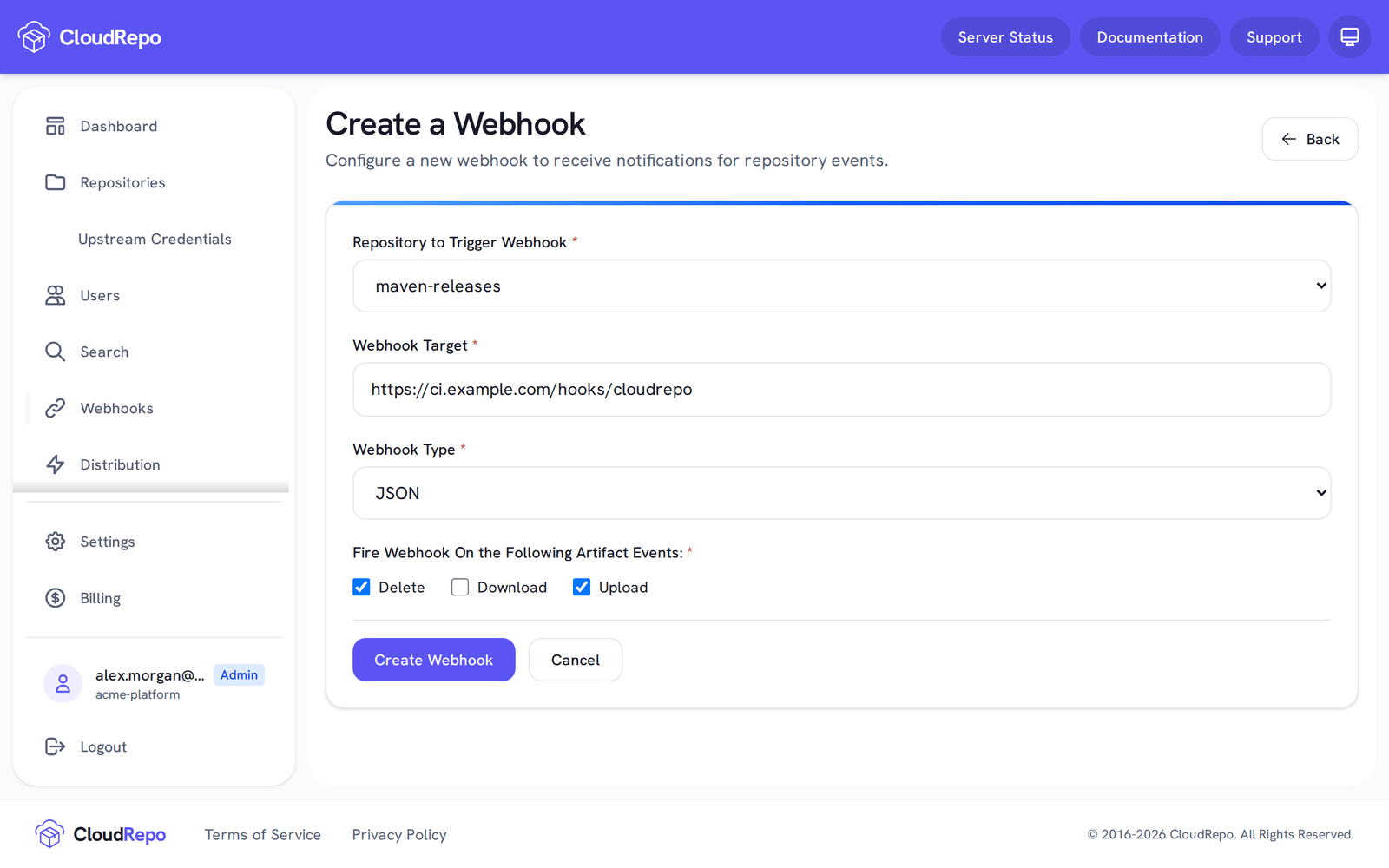
On the Create a Webhook screen, fill in:
- Repository to Trigger Webhook: the webhook fires for events in this repository.
- Webhook Target: for JSON, the
https://URL that listens for an HTTP POST with a JSON body; for Slack, the webhook URL you copied from Slack. - The webhook type: JSON or Slack.
- Fire Webhook On the Following Artifact Events: tick Delete, Download, Upload, or any of them.
Then click Create Webhook.
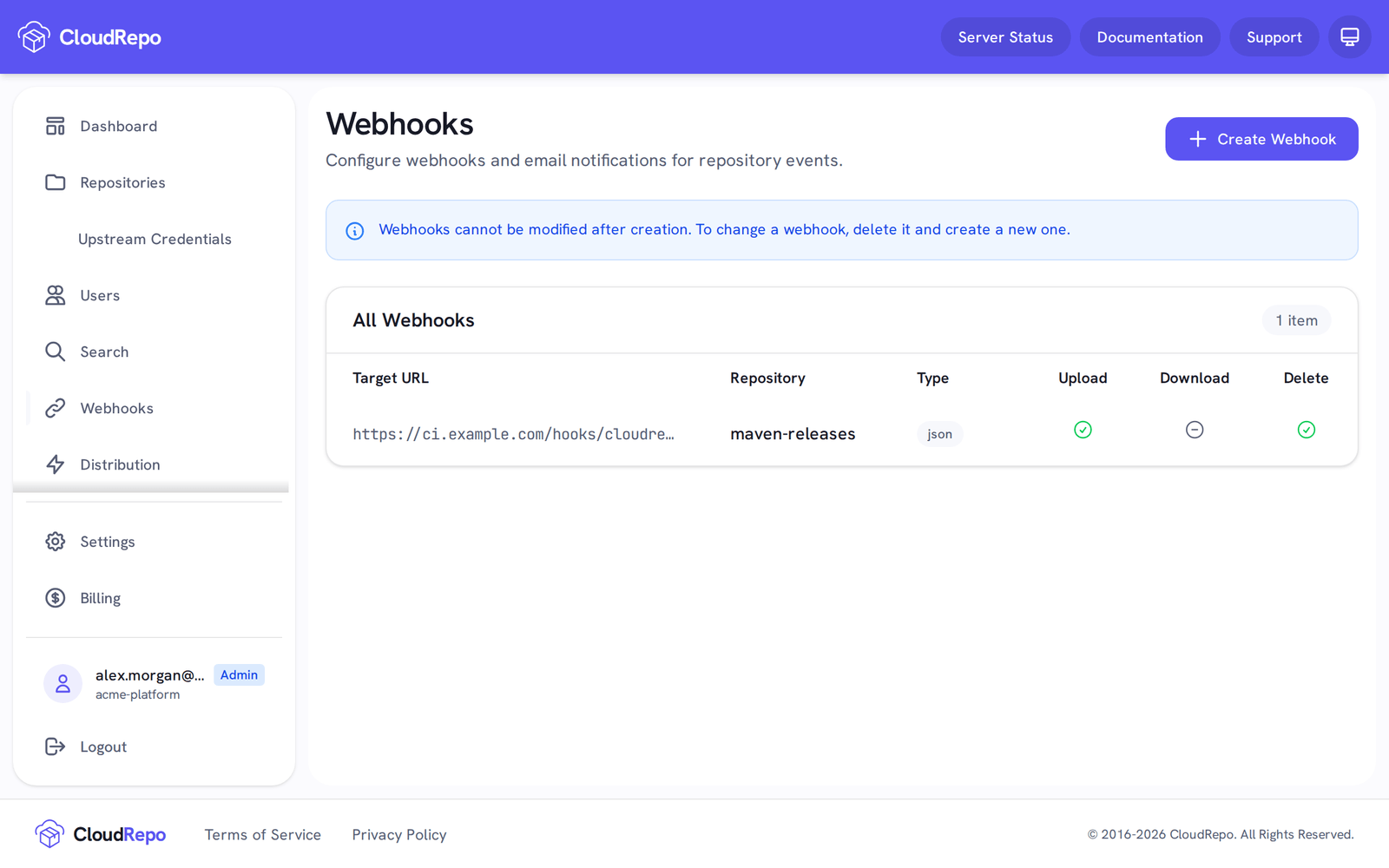
Upon successful completion, your webhook will now be listed in the list of webhooks:
Modifying a Webhook
Section titled “Modifying a Webhook”At this time, CloudRepo doesn’t support modifying an existing webhook.
If you wish to add events to a particular webhook URL, simply create a new webhook with the additional events you wish to monitor.
If you wish to remove events from a particular webhook, delete the existing webhook and add a new webhook with the updated permissions.
Deleting a Webhook
Section titled “Deleting a Webhook”In order to delete a webhook, select it from the list of webhooks:
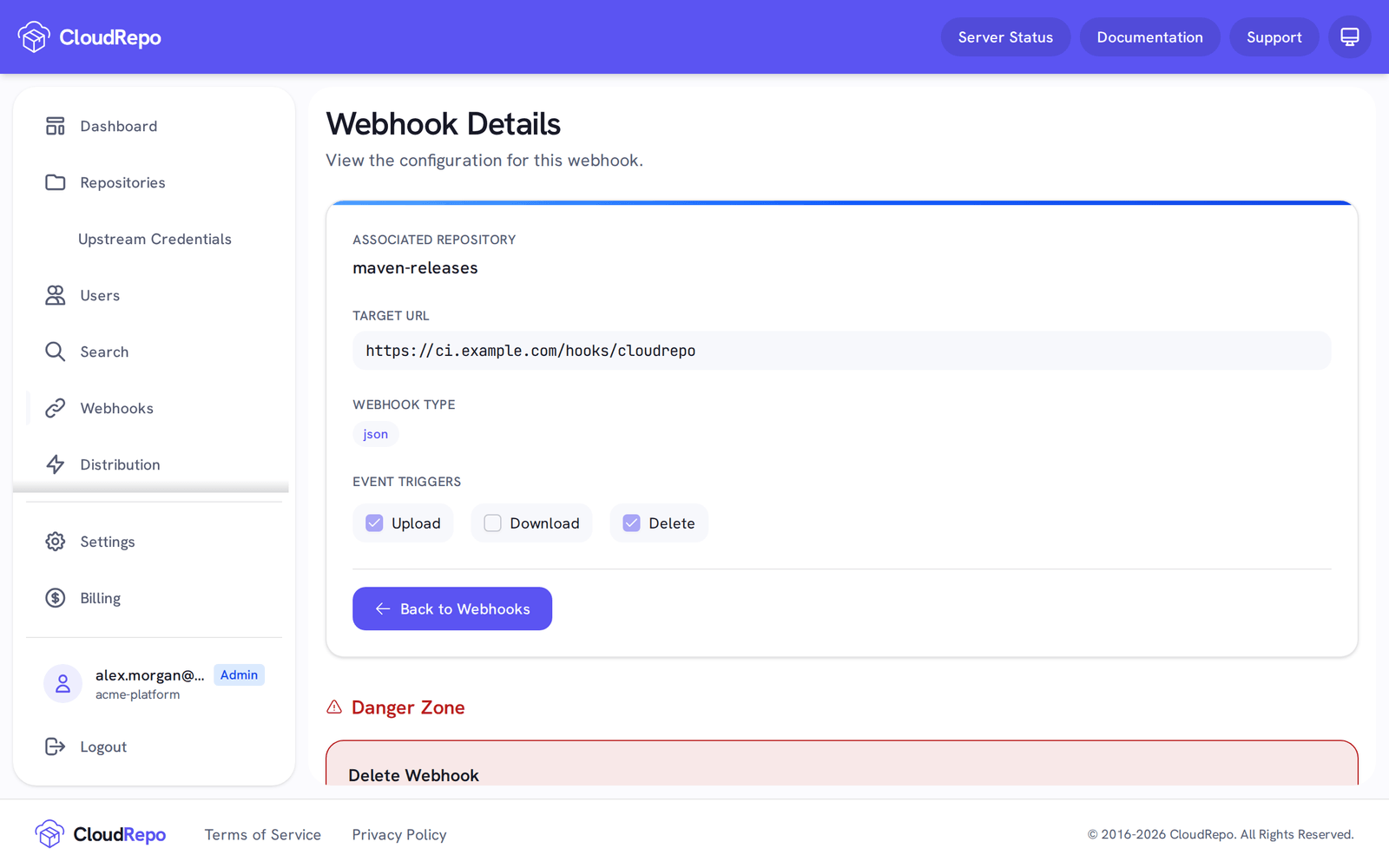
On the Webhook Details page, click Delete Webhook.
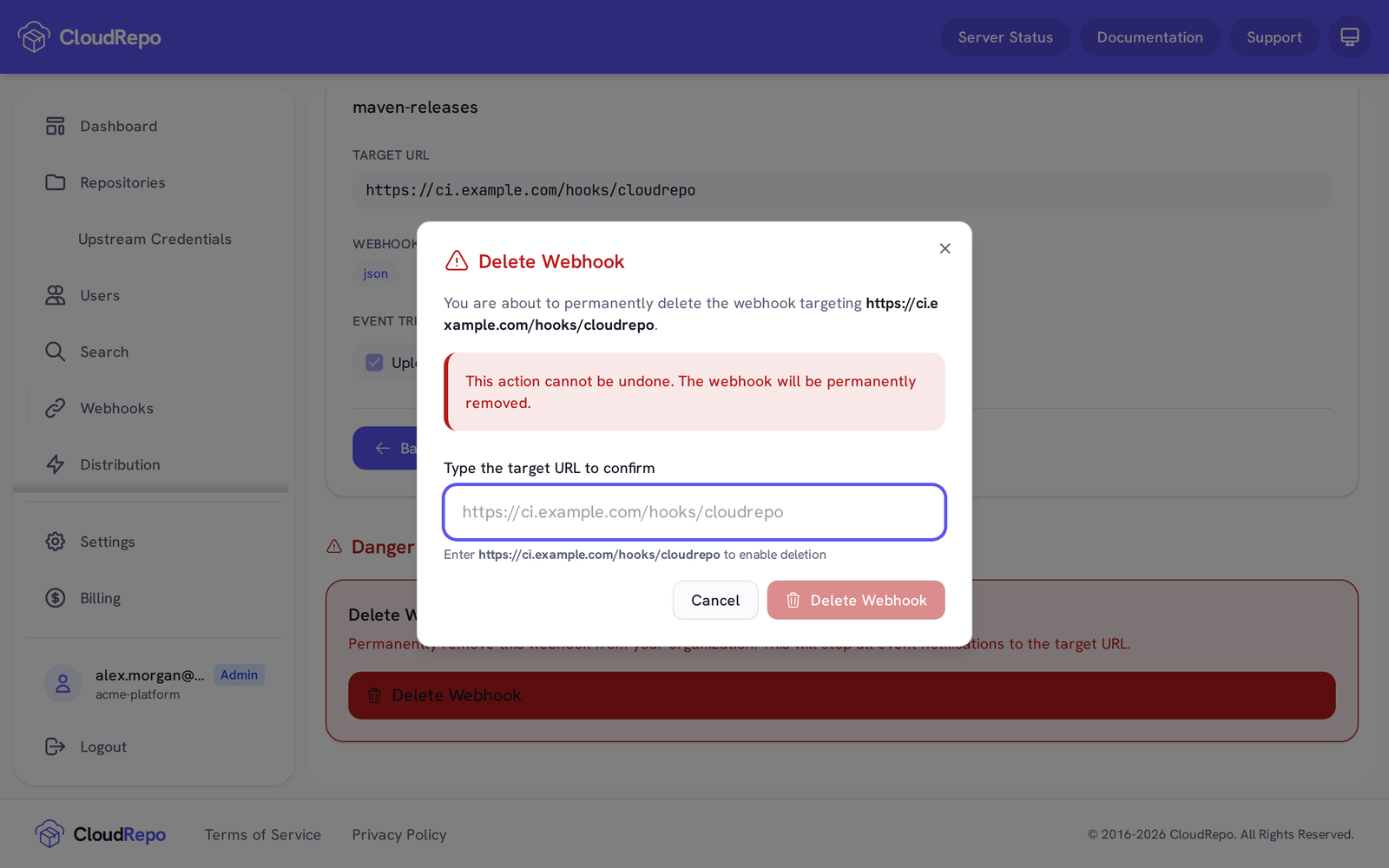
A confirmation window will pop up; confirm, and the webhook is permanently removed.