User Management
In order to retrieve an publish artifacts to CloudRepo private repositories, you’ll need to create one or more repository users.
Managing Users
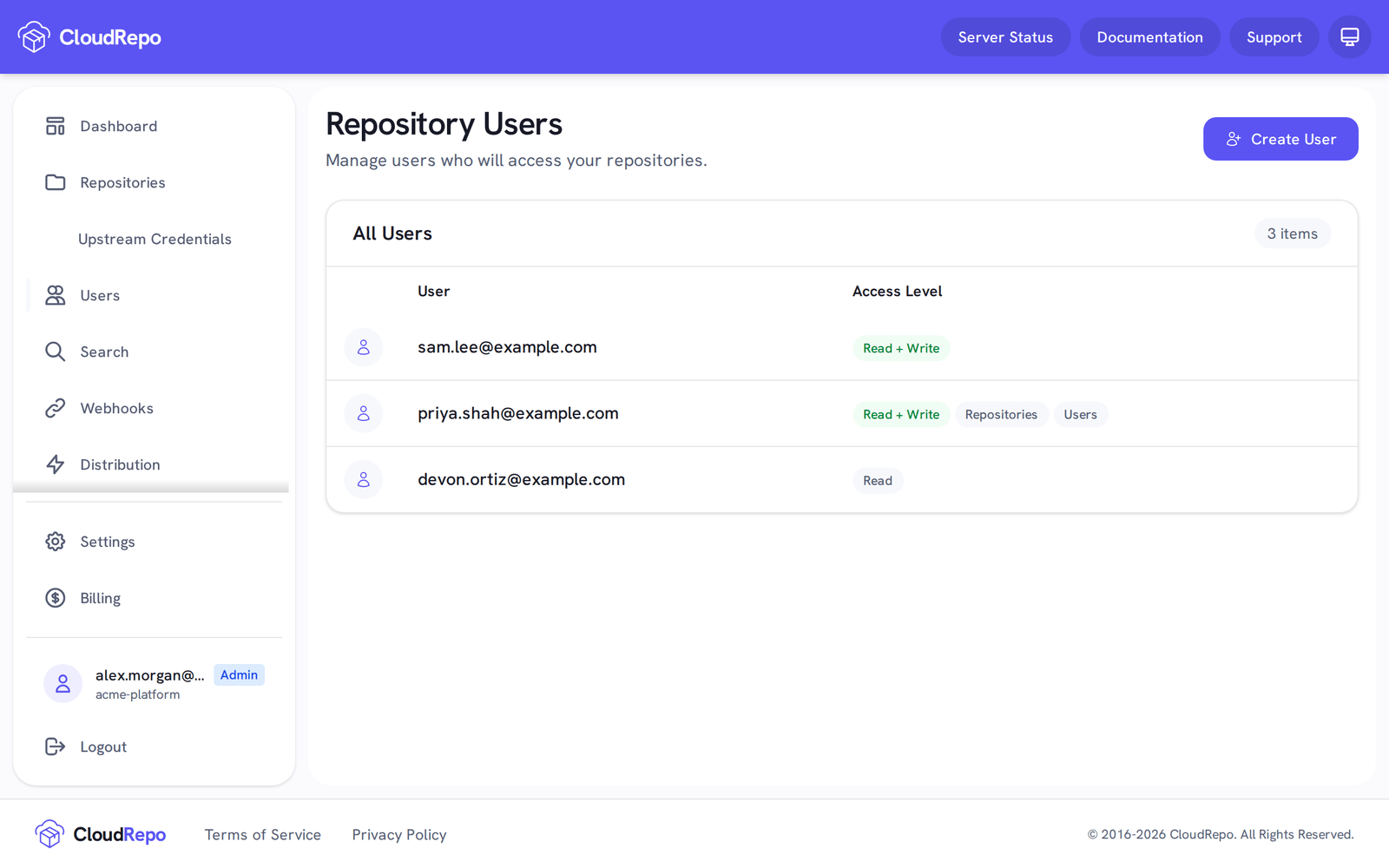
Section titled “Managing Users”CloudRepo provides a simple interface to manage your repository users. Simply login to the CloudRepo Administrator Portal and click the Users link in the sidebar.
The following screen should appear:
Creating Users
Section titled “Creating Users”To create a repository user, click the Create User button in the top right.
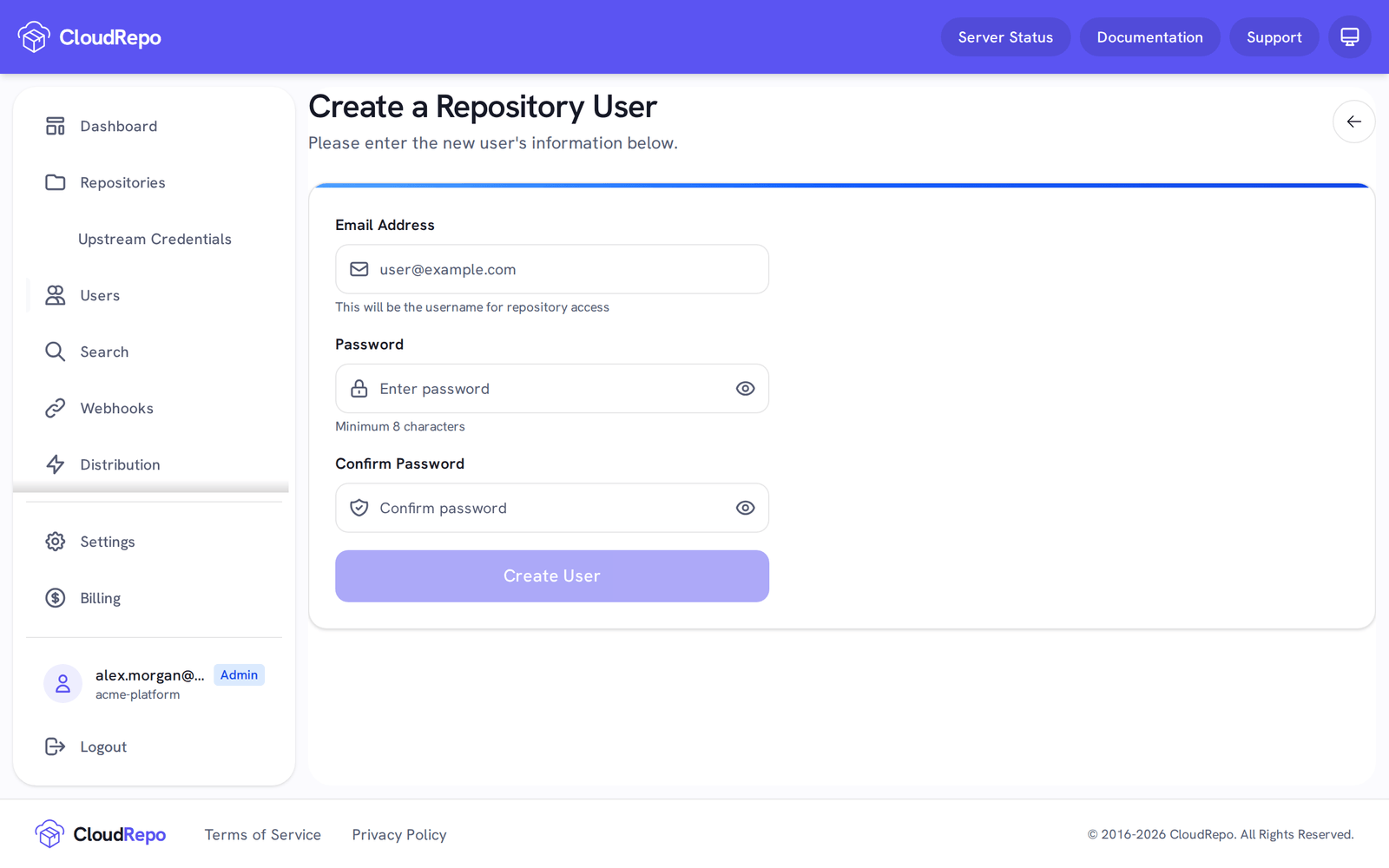
You will need to provide:
- Email Address: the user’s username, and the address their repository tokens carry.
- Password: the password the user signs in to the admin portal with. It must be at least 8 characters long.
If you have not confirmed your identity in the last 15 minutes, a Confirm Your Identity dialog comes first. Adding an address whose earlier removal has not finished is refused: delete the user again first.
User Settings
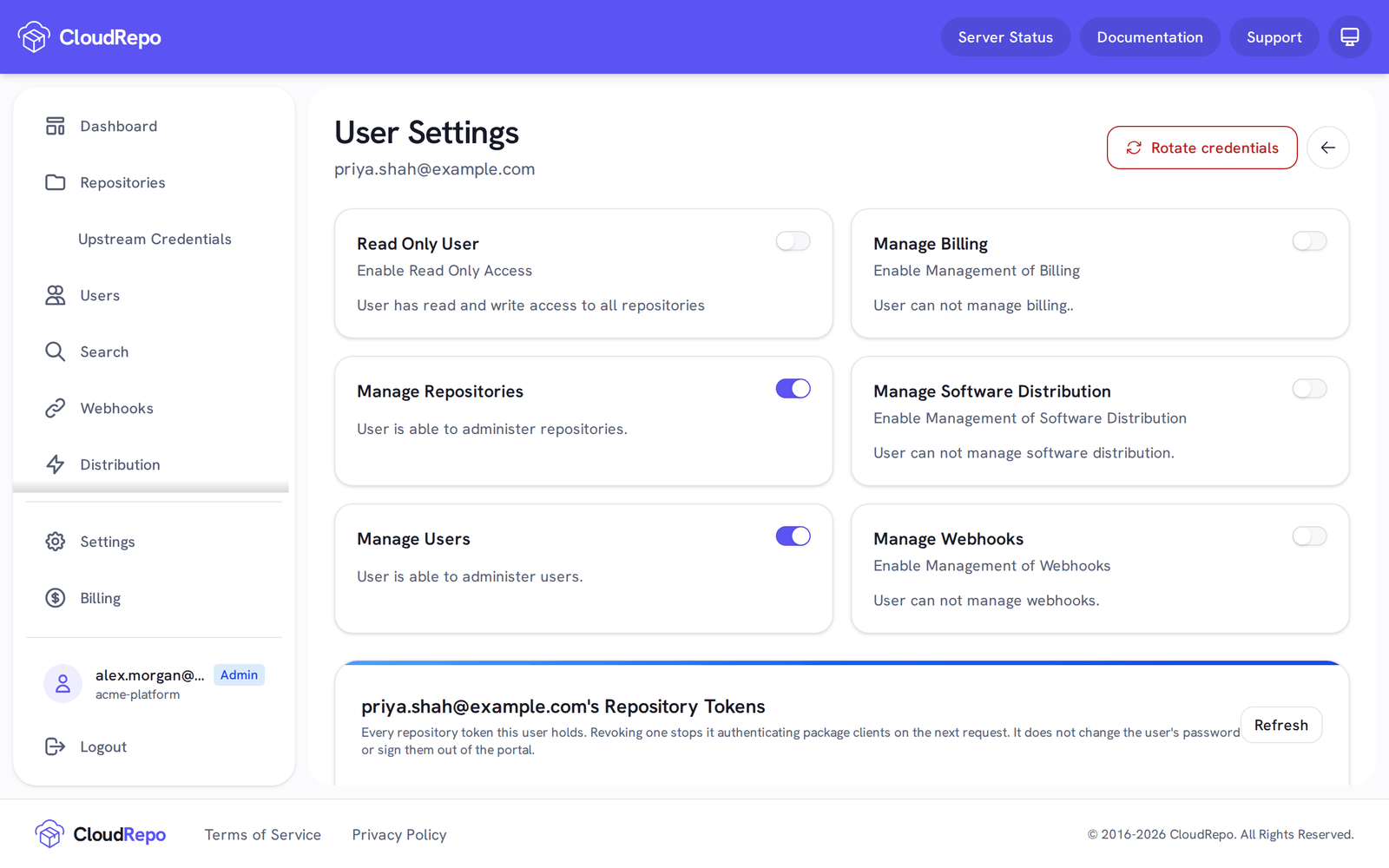
Section titled “User Settings”Selecting a User in the Repository User list will bring up the User Settings view.
Read Only Access
Section titled “Read Only Access”Turn on Read Only User to stop the user from writing to or deleting from your repositories.
Read Only Users are only permitted to read from all repositories.
Administrator Permissions
Section titled “Administrator Permissions”Users can be assigned administrator permissions so that you can delegate management of your account to others.
Permissions are granted based on functional area so that you can assign permissions on a granular basis.
Manage Billing
Section titled “Manage Billing”Toggling this will allow the user to manage the billing of your account. This includes managing payment information, subscription info, etc.
Manage Repositories
Section titled “Manage Repositories”Toggling this will allow the user to create, delete, and modify the settings listed in Repository Management.
Manage Software Distribution
Section titled “Manage Software Distribution”Toggling this will allow the user to create, delete, and manage Subscribers, their Groups, and repository permissions as described in Software Distribution.
Manage Users
Section titled “Manage Users”Toggling this will allow the user to create, delete, and manage user settings as listed on this page for all users in the organization.
Manage Webhooks
Section titled “Manage Webhooks”Toggling this will allow the user to create and delete webhooks as described in Webhooks.
Change Password
Section titled “Change Password”To change the selected user’s password, click Change Password.
Deleting Repository Users
Section titled “Deleting Repository Users”To delete a user, open their settings page, click Delete User, type their email address, and confirm. Their access to CloudRepo ends when the delete completes.
If CloudRepo cannot remove all of a user’s access at once, the user is signed out and can no longer sign in, and the portal asks you to delete them again. Until you do:
- nobody can sign in or use a token at their email address;
- adding a user at that address is refused; and
- the user stays in the user list.
Deleting them again is always allowed.