Sign Up and Sign In
Signing up creates a CloudRepo organization and its owner. Your organization ID becomes part of every repository URL, and the email address you sign up with becomes the owner’s login.
Before you start
Section titled “Before you start”- An email address you can read now. CloudRepo sends a verification link there, and you cannot sign in until you open it. The link is good for 72 hours.
- An organization ID. Lowercase letters, numbers and hyphens, up to 32 characters, such as
my-company. It is part of every repository URL (my-company.mycloudrepo.io), so choose the name your team will see.
Sign up
Section titled “Sign up”- Open cloudrepo.io/signup.
- Choose your organization ID. The form tells you whether it is available: Organization ID is available! or This organization ID is already taken.
- Enter your email address and a password of at least 8 characters, and confirm the password.
- Review the summary: it shows your organization ID, your repository URL and your email address. Tick the box to accept the Terms of Service and the Privacy Policy, complete the verification check, and click Create Account.
Expected: Account Created! The page asks you to check your email, at the address you entered, to activate your account. It adds that the verification link expires in 72 hours, and to check your spam folder if you do not see it.
Verify your email address
Section titled “Verify your email address”Open the email and click Verify Email. The admin portal opens and says Email Verified: Your email address is verified. Sign in to start using CloudRepo. Click Sign In.
If the link has expired or the email never came, try to sign in (below) with your correct password. While your address is unverified, the portal then sends a new link and tells you so, and the new link is good for 72 hours. Each new link replaces the last, so open the newest email.
- It sends at most one link a minute. If you try again sooner it says A verification link was sent less than a minute ago and asks you to check your inbox and spam folder.
- An account can reach a limit on verification emails. The portal then tells you to contact support@cloudrepo.io, and support verifies the address with you.
Sign in
Section titled “Sign in”-
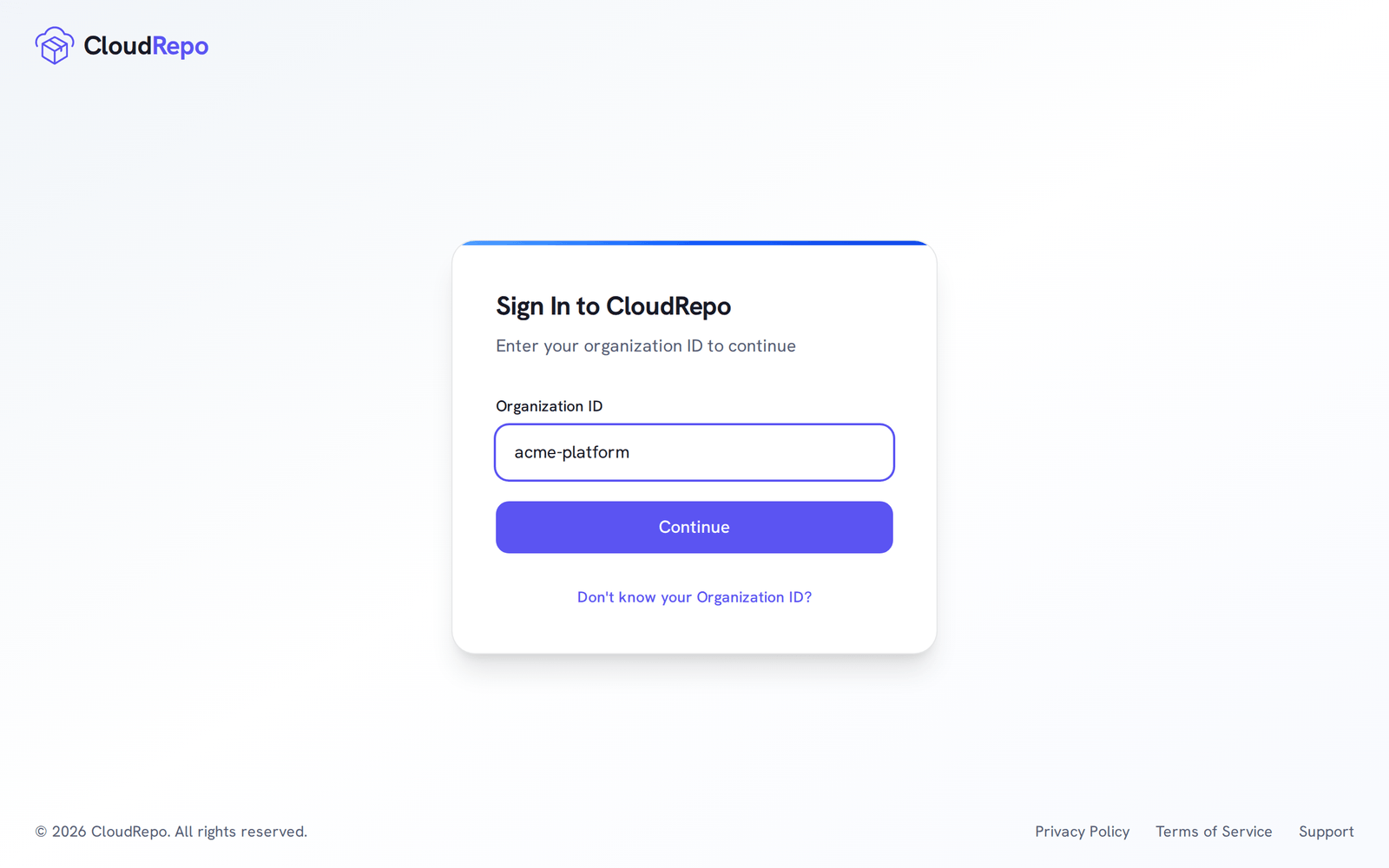
Open admin.cloudrepo.io. The page asks for your Organization ID; enter it and click Continue. If you do not remember it, click Don’t know your Organization ID? and enter your admin email address. If it belongs to an organization, CloudRepo emails you the ID.
-
Enter your email address and your password, and click Sign In. Forgot Password? resets it.
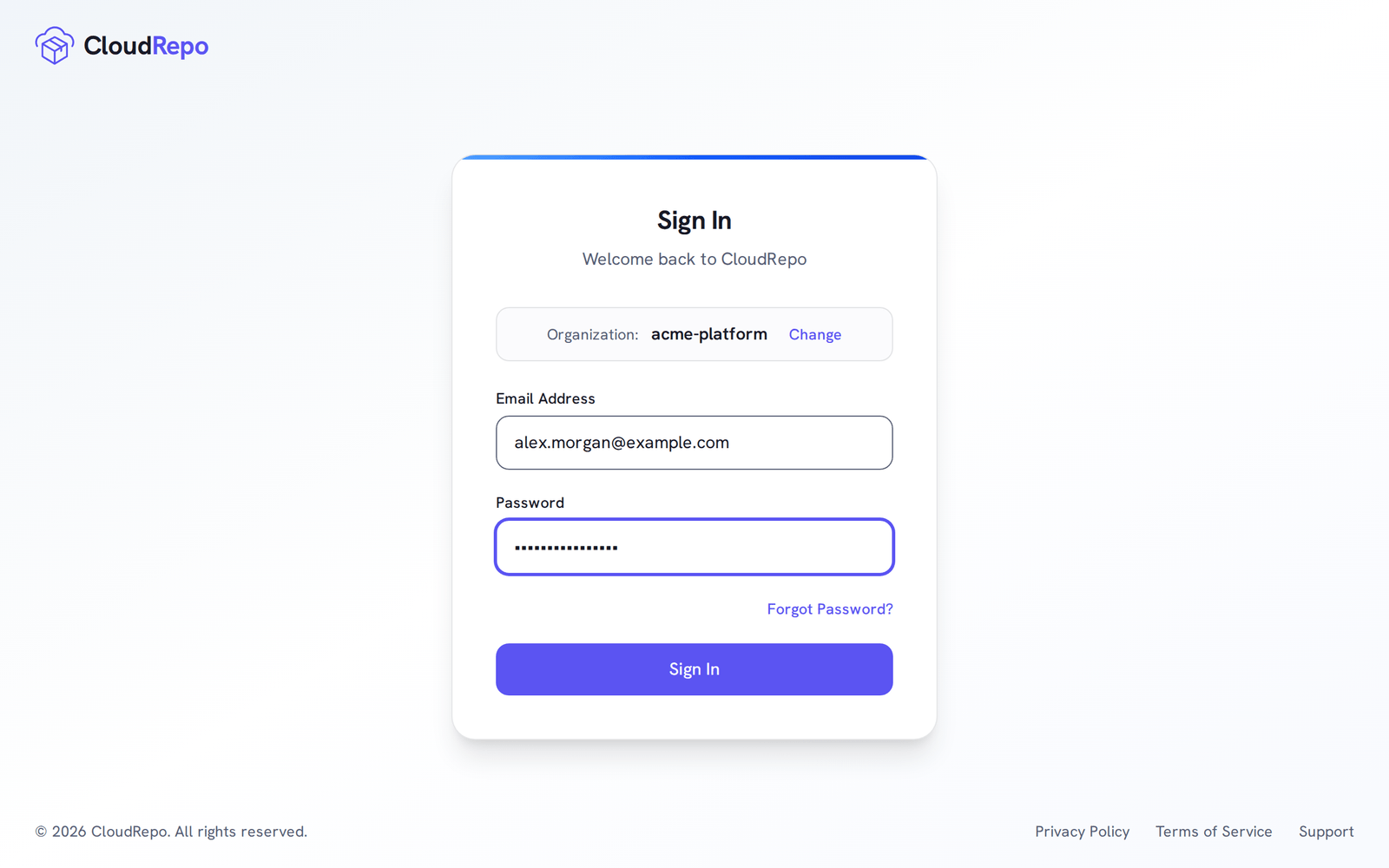
Expected: the first time, the portal opens Get Started with CloudRepo, a four-step guided setup. It shows until your organization has a repository and a repository user, or until you click Skip and go to Dashboard. After that you land on the dashboard.
- First Steps: the whole path from here to a published package.
- Create Your First Repository.