Software Distribution
The software distribution features of CloudRepo allow you to distribute your software artifacts (SDKs, libraries, etc.) to your customers (subscribers) in a more controlled way than public repositories.
Using CloudRepo, you can grant read only access to one or more of your repositories to specific groups of subscribers. Access is then granted to each subscriber via one or more access keys that you create per subscriber.
This allows you to grant authenticated, read only, access to your private repositories.
Subscribers can only read from the repositories you have assigned to them.
Overview
Section titled “Overview”To being using the Software Distribution features of CloudRepo, first login to the Admin Portal as the administrator and select the Software Distribution option from the menu.
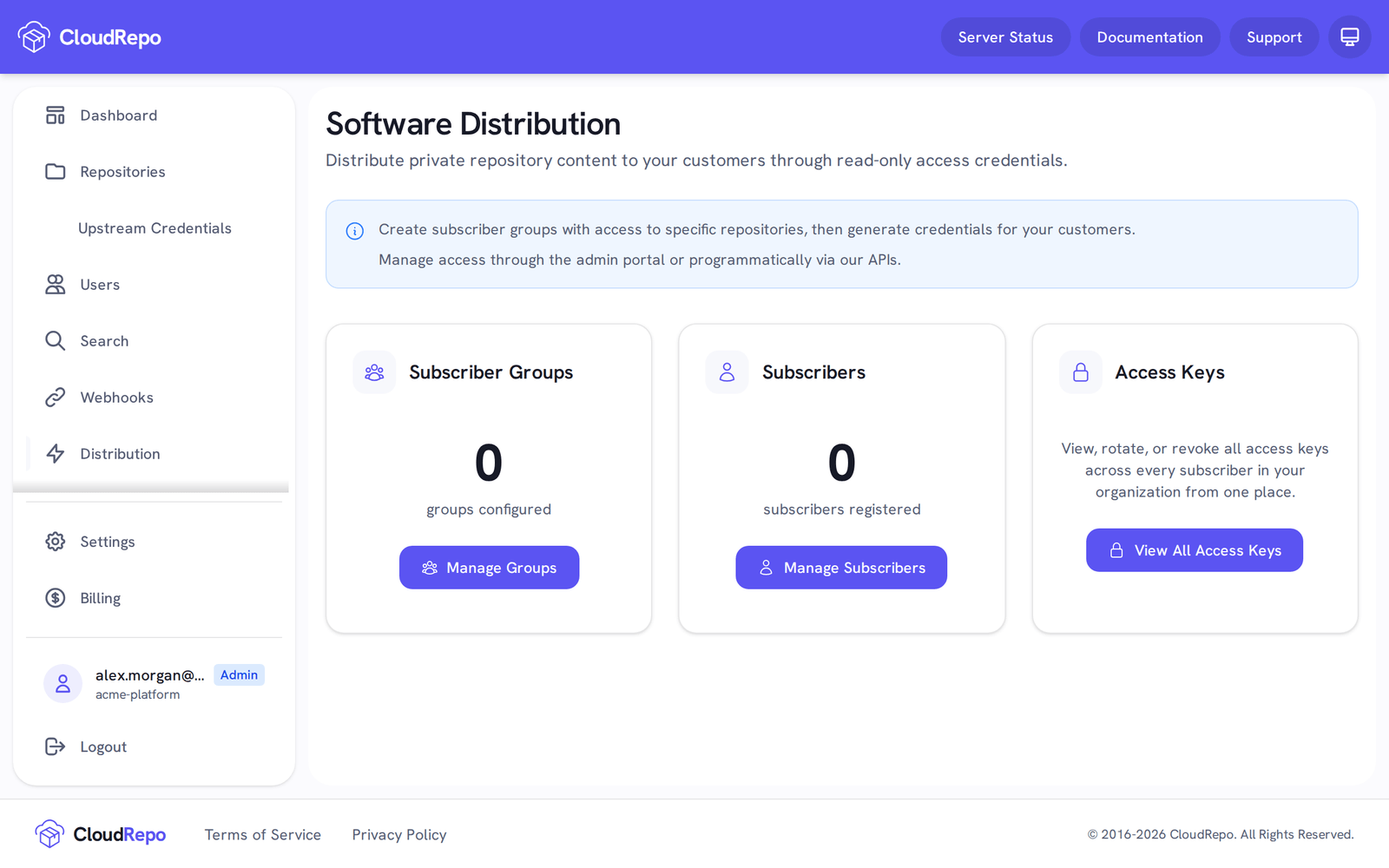
This link will bring you to the Overview screen which will provide you with a summary of your Subscriber Group and Subscriber counts.
Subscriber Groups
Section titled “Subscriber Groups”Software Groups allow the grouping of subscribers to a set of repositories that the group can access.
Get started using the Software Distribution features of CloudRepo by creating your first subscriber group.
Create a Group
Section titled “Create a Group”To create your first group, click the Manage Subscriber Groups link from the Software Distribution overview screeen.
As you have no existing groups, the following screen will appear:
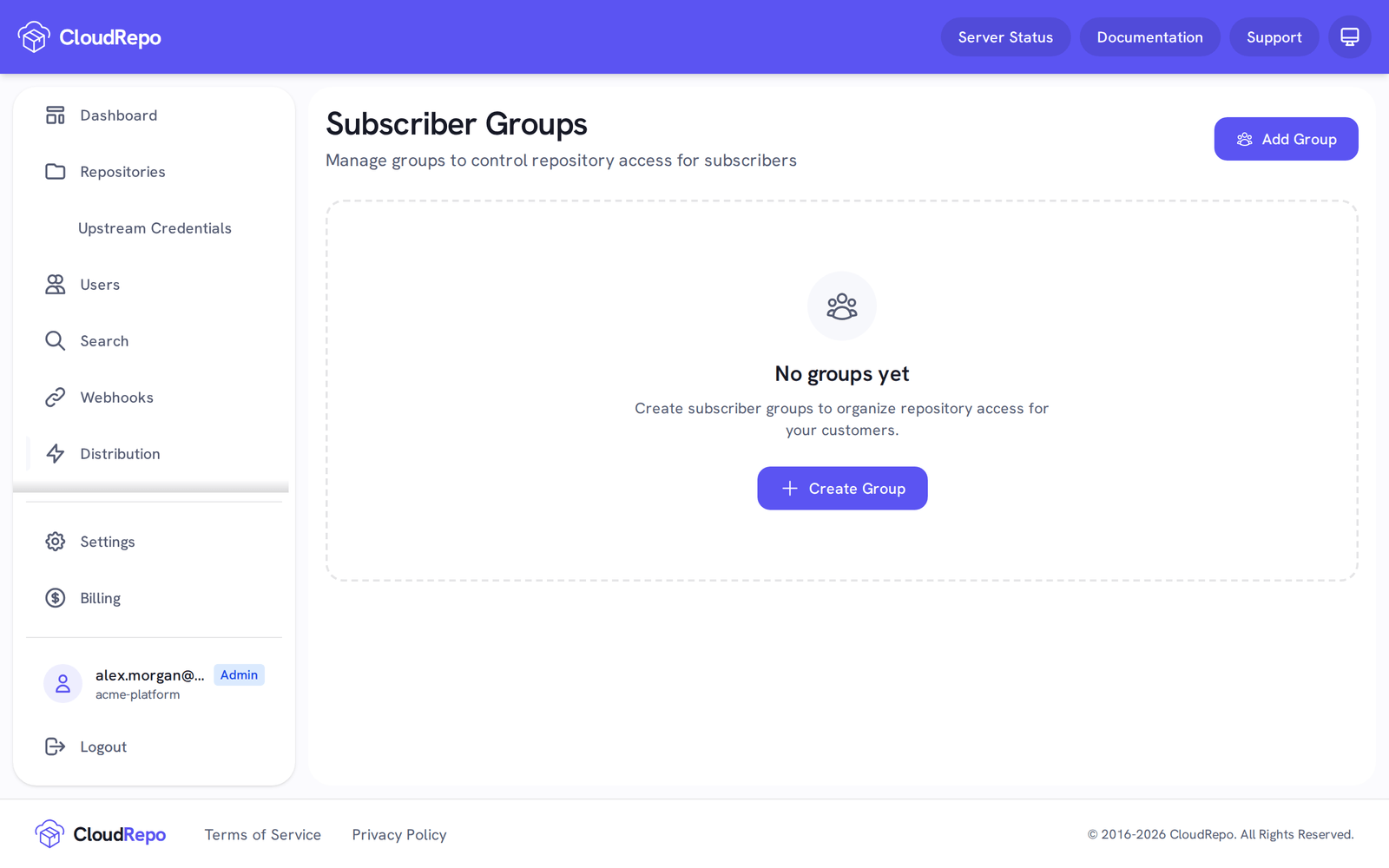
Selecting either of the indicated buttons will bring you to the Create Group screen:
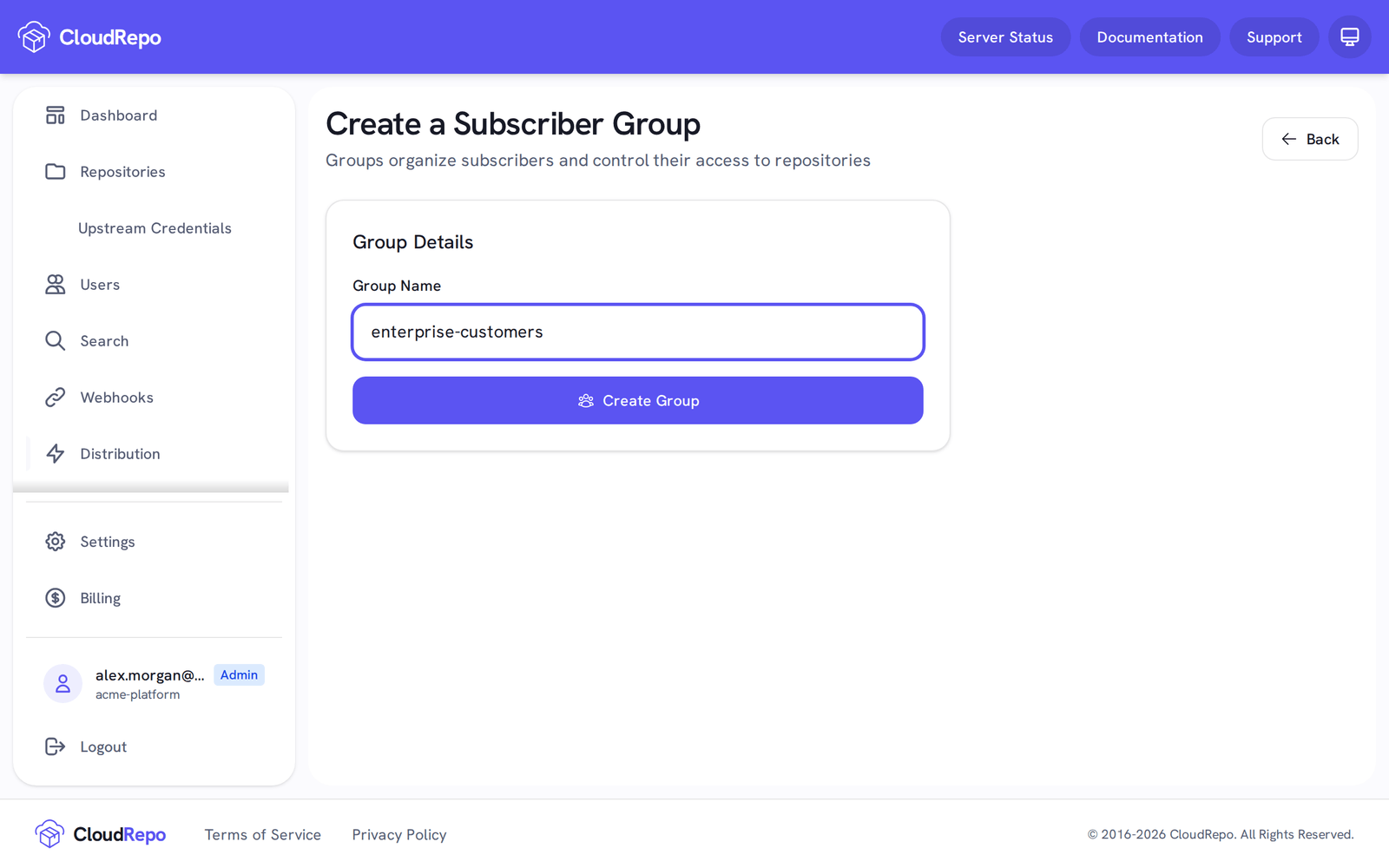
A subscriber group must have a unique name for your organization. Enter a value of the name in the input field and click Create.
Once the group has been created, you’ll be presented with the Group Overview Page.
Group Overview
Section titled “Group Overview”The group overview screen allows you to manage the repositories the group has access to along with the subscribers that are members of the group.
There are two tabs on this screen: Repository Access and Subscribers.
Repository Access
Section titled “Repository Access”Granting access to a repository will allow members of the group to read files from that repository via the private repository URL.
Access is granted to a repository by toggling the Access column in the table:
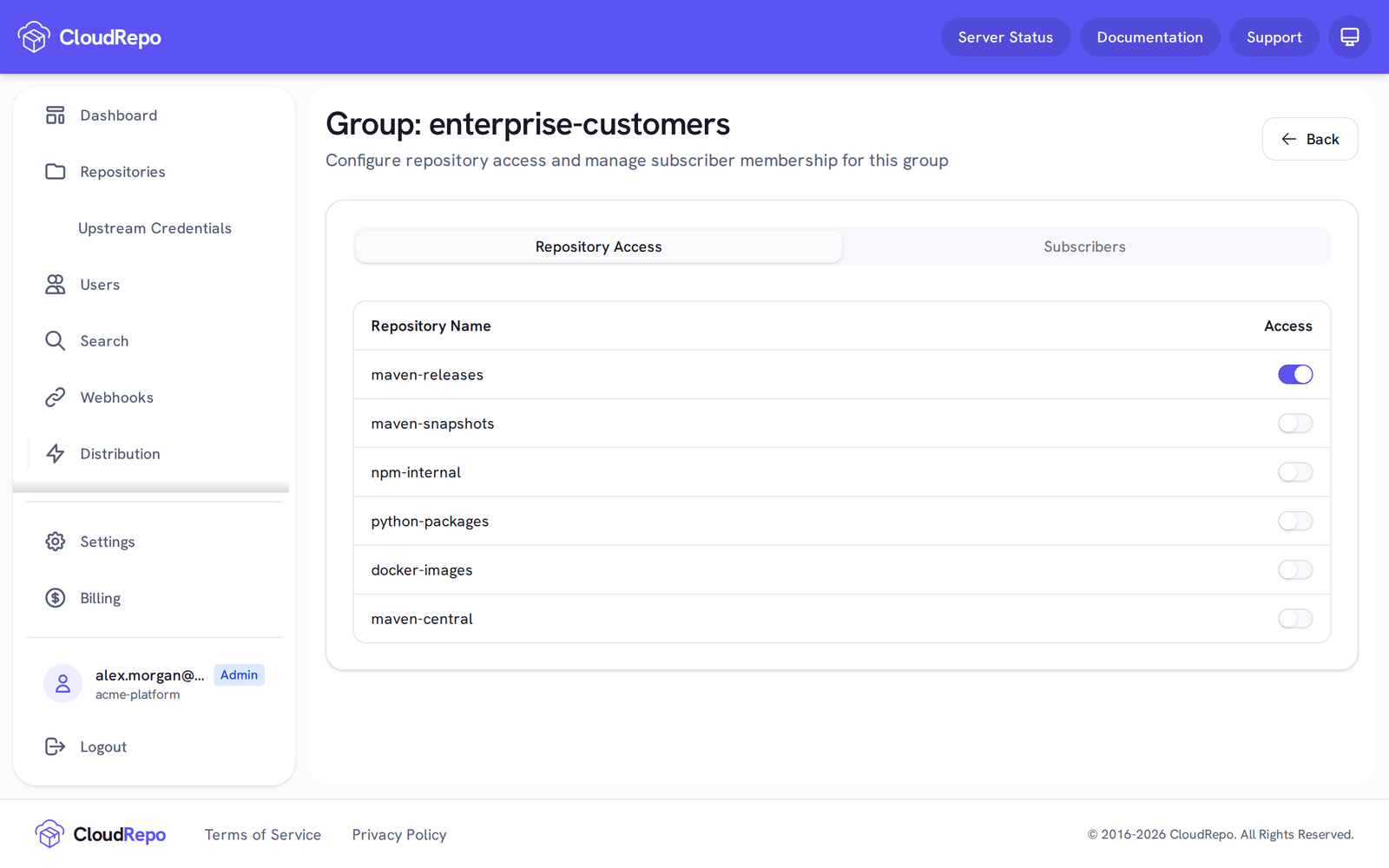
Now that access has been granted to the repository, you’ll need to add Subscribers to the group.
Select the Subscribers tab to do so. Once you arrive at the Subscribers tab, if you have no subscribers you will be able to click the Manage Subscribers link.
Group Subscribers
Section titled “Group Subscribers”Group Subscribers are Subscribers that you’ve assigned to a group. All subscribers associated with a group will have access to all of the repositories that the group has.
Subscribers can belong to multiple groups and access will be granted based on the union of all associated group permissions.
Add a Subscriber to a Group by toggling the Membership toggle in the list.
Subscribers
Section titled “Subscribers”Subscribers represent individual users that you wish to grant read only access to one or more of your private repositories.
Create a Subscriber
Section titled “Create a Subscriber”Navigate to the Subscribers screen. If you haven’t created any subscribers, you will be presented with the following screen. Select either of the indicated buttons to create your first Subscriber.
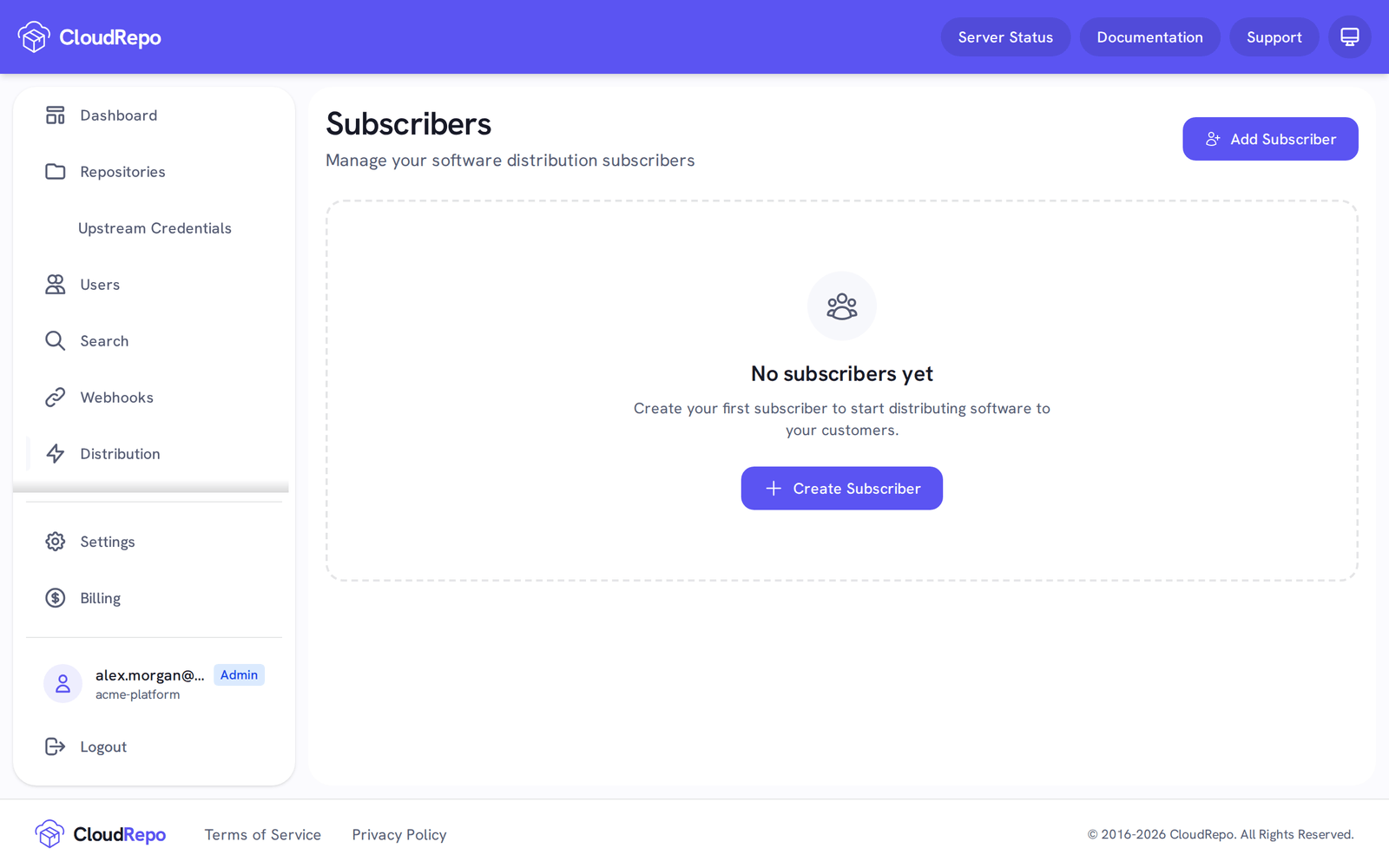
At the new subscriber screen, you’ll be prompted for a name. This name must be distinct from all other subscriber names.
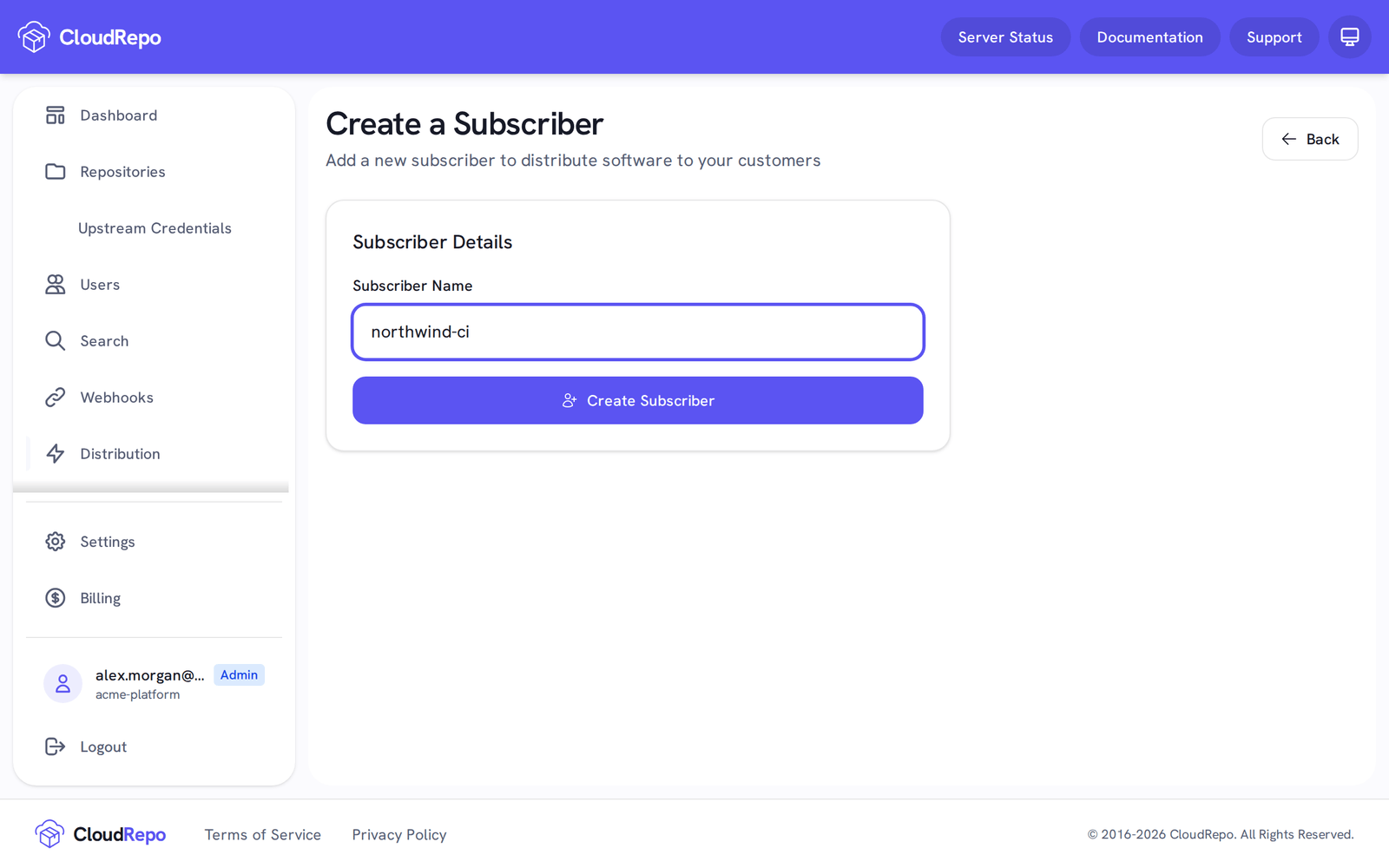
Subscriber Overview
Section titled “Subscriber Overview”The Subscriber Overview page lets you view and managed the Groups and Access Keys associated with a particular subscriber.
The overview has two tabs: Group Membership and Access Keys.
Group Membership
Section titled “Group Membership”The Group Membership table allows you to add a user to one or more groups.
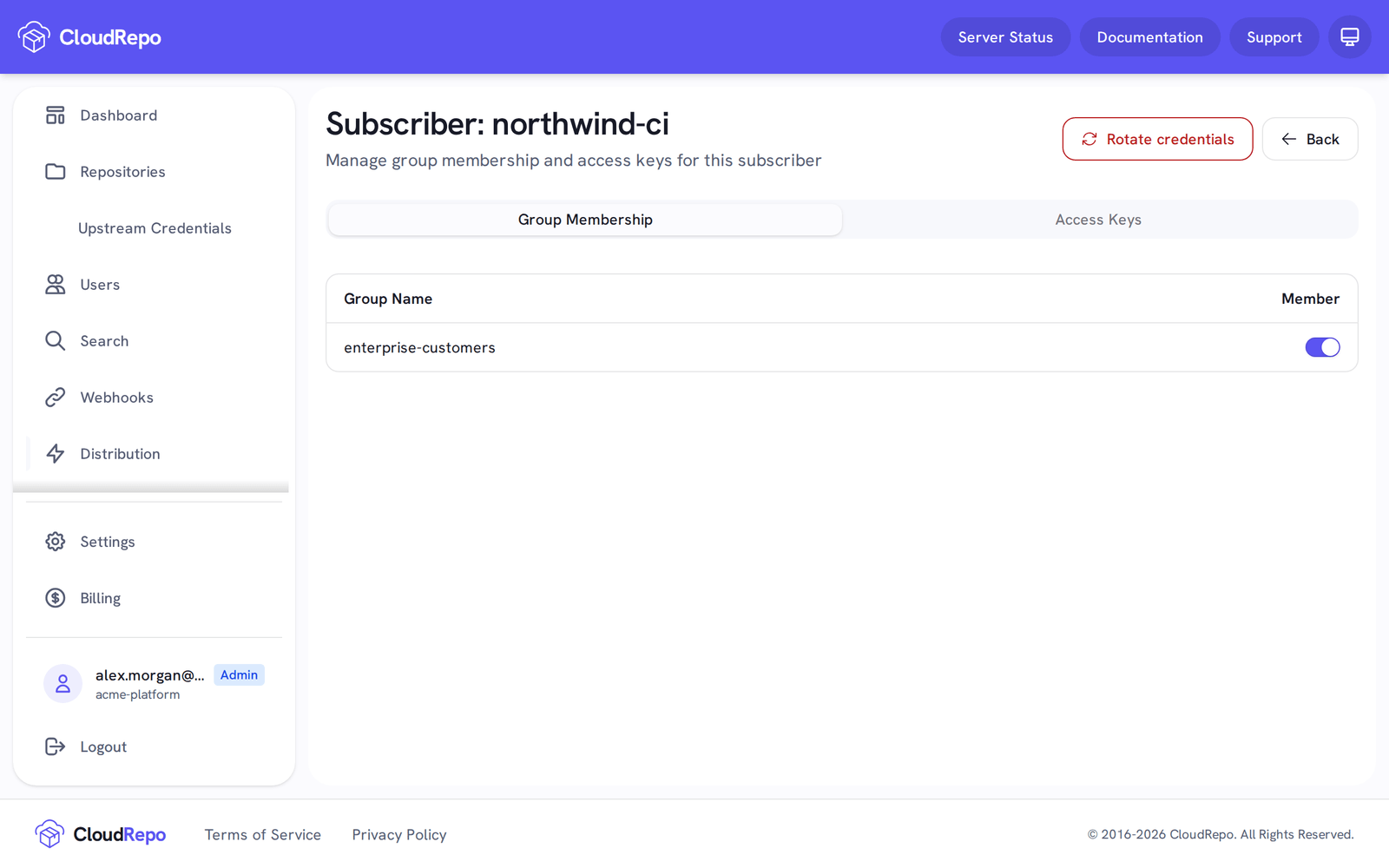
Adding a subscriber to a group is done by toggling the button next to the group name in the table.
Access Keys
Section titled “Access Keys”Access Keys are the credentials that your subscribers will use to access your repositories. View and manage the Access Keys associated with a subscriber by selecting the Access Keys tab.
To create a key for the subscriber, click Issue Access Key and choose when it expires: in 90, 180 or 365 days, on a date up to 31 December 9999, or Never expires (the default is 90 days).
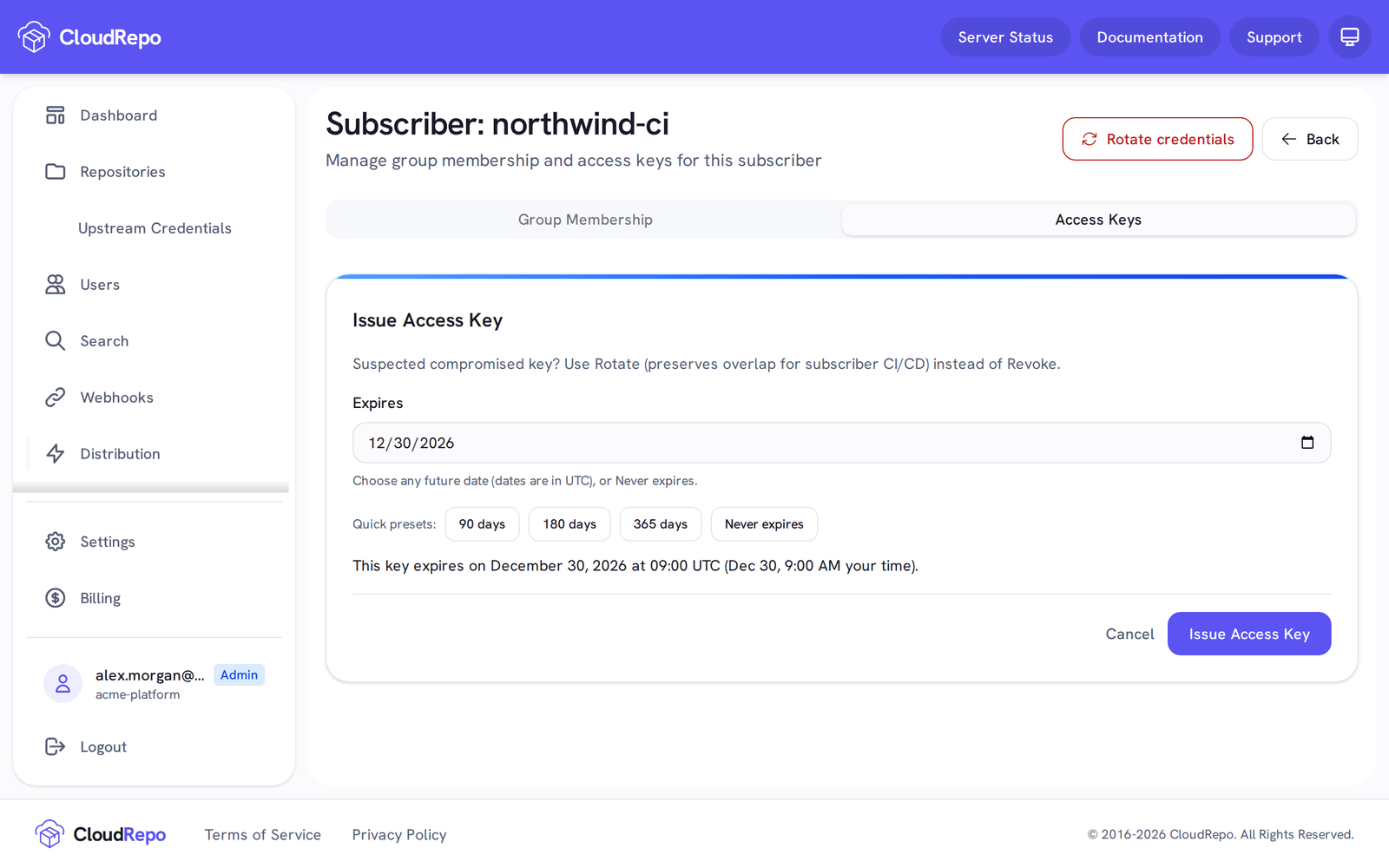
Once the key is issued, you’ll be shown its Access Key ID and Secret Value, with a connection snippet.
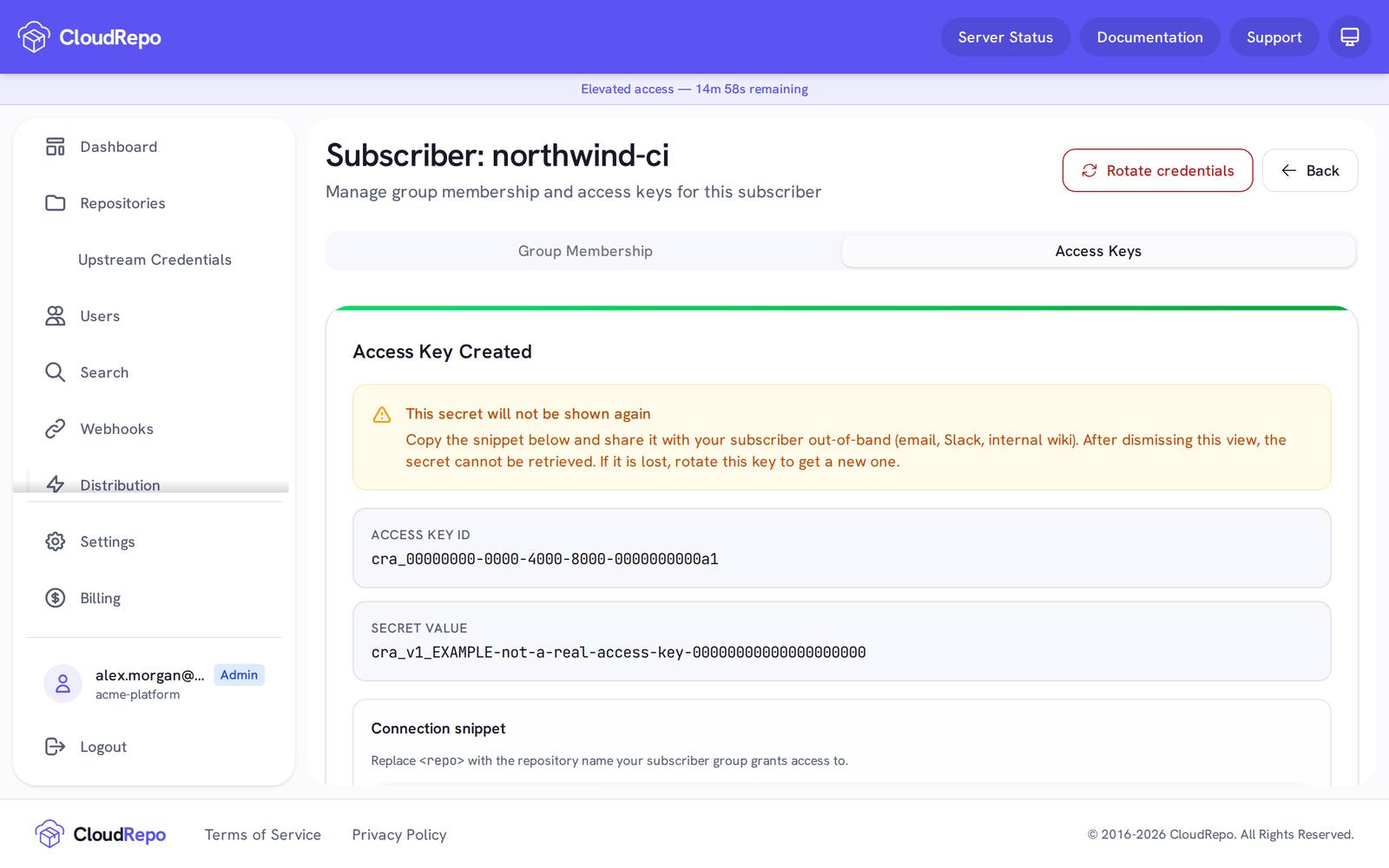
Give these values to your subscriber. They will use these credentials to authenticate against the CloudRepo repository you have assigned to their groups.
Rotate Access Key issues a new key and keeps the old one working for an overlap window you choose (7 days by default), so your subscriber’s builds can switch over. Change Expiry gives an existing key a new expiry without changing the key.
Need More Information?
Section titled “Need More Information?”Is there something you’d like to learn more about related to the Software Distribution features of CloudRepo?
If so, please let us know by email to Support.